
You can create custom colors for the Data Chart, the Graphic Chart, and the Exam Comparison Chart. For information on changing the default colors to pre-defined colors, click the following links:
Changing the Data Chart color scheme
Changing the Graphic Chart color scheme
Changing the Exam Comparison Chart color scheme
To create a custom color
1. From the Perio Display Setup dialog box, click the Data Entry Colors, Graphical Chart Colors, or Exam Comparison Colors tab, and then click the list arrow corresponding to the color that you want to change.
A color palette appears.
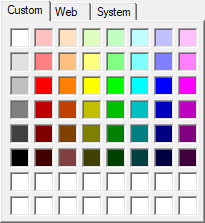
2. To create a custom color, right-click one of the blank squares at the bottom of the palette.
The Color dialog box appears.
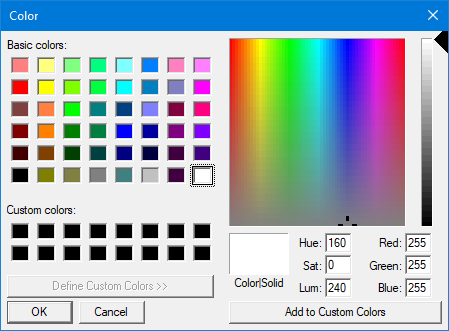
3. Under Custom colors, click one of the boxes.
4. Click an area in the color matrix, and then do one of the following:
Use the slider to adjust the hue, saturation, and luminosity.
Type a value for hue, saturation, and luminosity in the appropriate text box.
5. To save your custom color, click Add to Custom Colors.
The custom color appears in the box you selected under Custom colors.
6. To accept the custom color, click OK.