
The current status of online patient forms is received through eSync and automatically updated in the Appointment Book for forms corresponding to patients’ appointments. A form status indicator appears in the Appointment Book for any appointments that have received patient form updates. Form status indicators are color coded as follows:
 A green checkmark means that the patient has completed all forms.
 A red X means that one or more patient forms are incomplete.
 A yellow checkmark means that one or more patient forms need to be synced online.
No indicator means that patient forms have not been created or made available for the patient or that no status updates have yet been received for the patient’s forms.
To view the status of a patient's forms in the Appointment Book
1. In the Appointment Book, hover your mouse pointer over the desired form status indicator to see a brief explanation of the status of the patient’s forms.
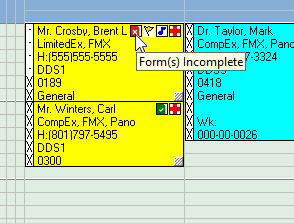
2. Click the form status indicator on the appointment to see details regarding the status of each patient form, sync forms as applicable, and send a text reminder to the patient to complete their forms online as needed.
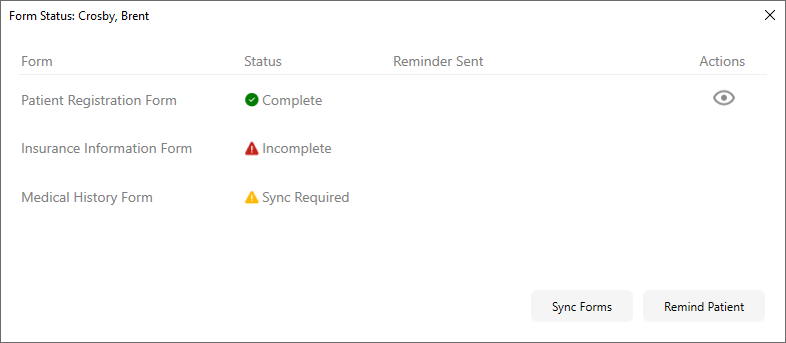
The Form Status dialog box appears showing the status for each patient form and any applicable actions depending on status.
If the form has a Complete status, a view form (eye) icon appears in the Actions column.
If one or more forms has an Incomplete status, a Remind Patient button appears at the bottom of the dialog box.
If one of more forms has a Sync Required status, a Sync Forms button appears at the bottom of the dialog box.
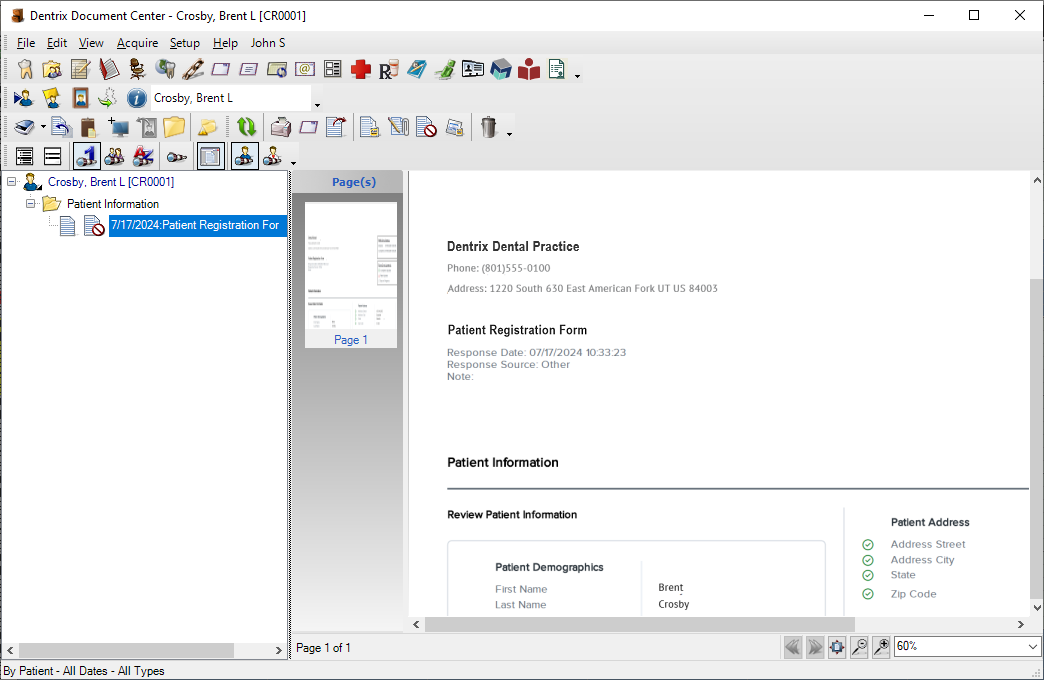
3. To view a completed form, click the view form (eye) icon in the Actions column.
The Document Center window appears with the completed online form selected under the Patient Information type.
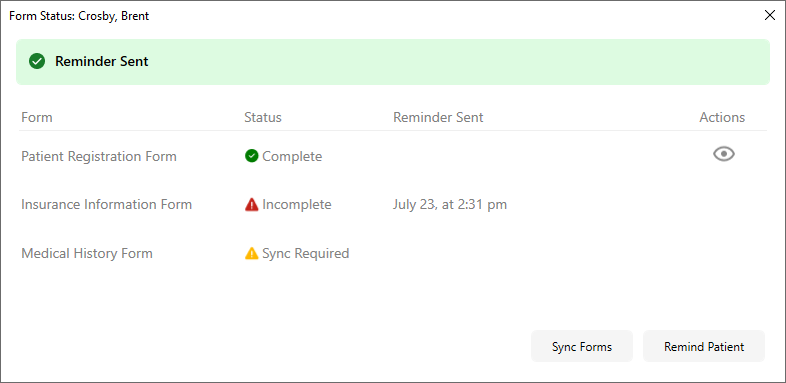
4. To send a text reminder to the patient to fill out any forms that are incomplete, click the Remind Patient button.
A text message with a link to complete the forms online is sent to the patient’s mobile number (as entered in Family File) and the current date and time is displayed in the Reminder Sent column.
Note: If the patient does not have a mobile number entered in the Family File, the Remind Patient button is disabled. Once a mobile number is entered for the patient, the button is enabled.
5. To sync the data for any forms that require it, click the Sync Forms button.
The Patient Forms website opens, allowing you to perform the necessary sync for your patient forms.