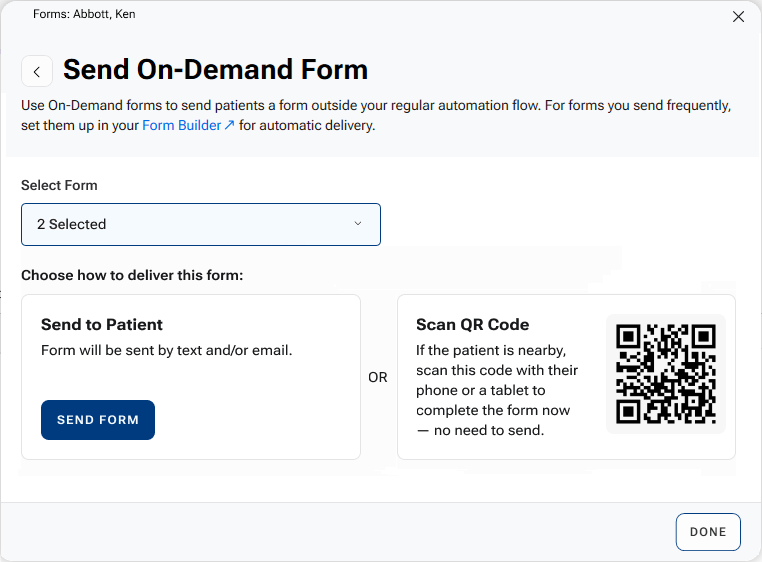
You can set up and send forms on demand to your patients directly from Dentrix.
To set up and send an on-demand form
1. In a Dentrix module, such as the Appointment Book, click the Forms toolbar button.
The Form Builder screen appears in your default web browser.
2. From the list, select the desired form, and then from the Actions menu, click Settings.
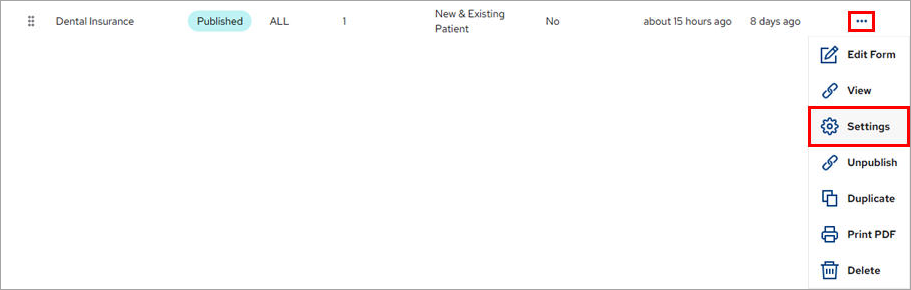
The Form Settings screen appears.
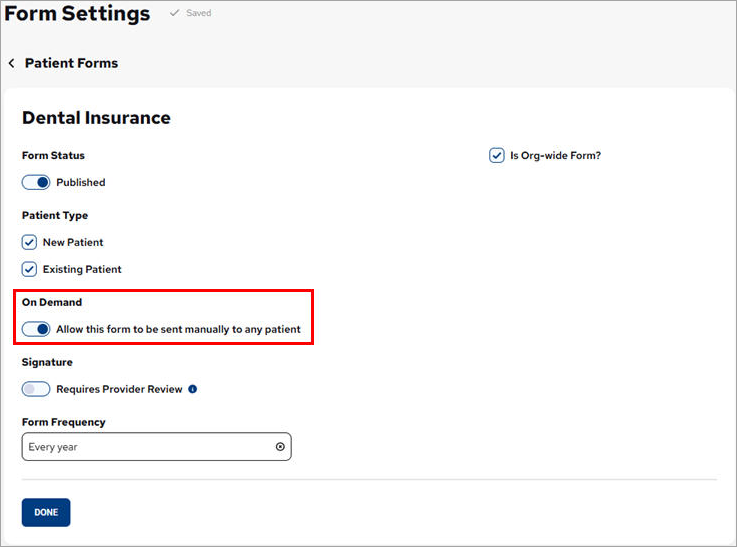
3. Under On Demand, click the Allow this form to be sent manually to any patient toggle, and then click Done.
The Patient Forms screen appears. In the On Demand column of the form whose on-demand setting you changed, the word Yes appears.
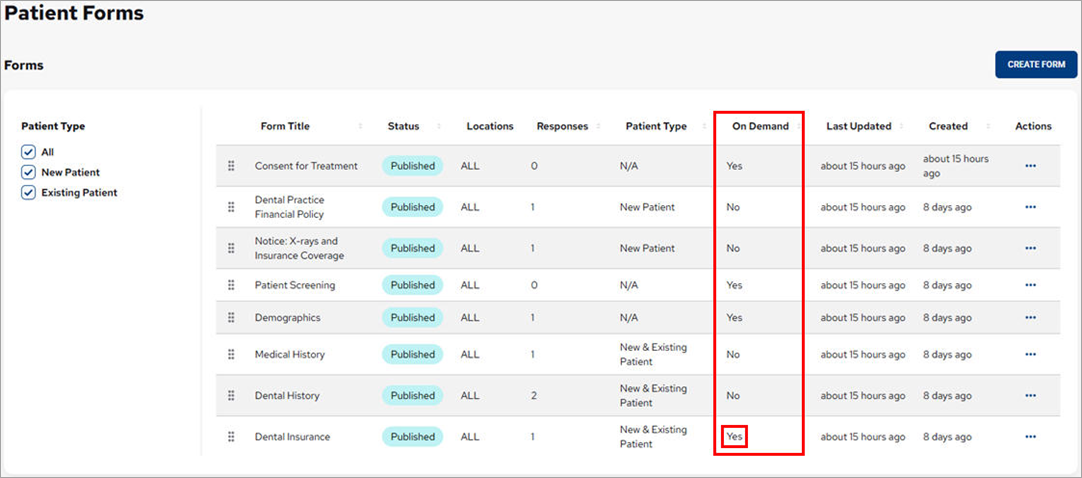
4. To send one or more On-Demand Forms to a patient, do one of the following:
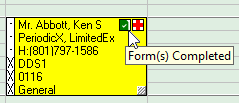
In the Appointment Book, click the Form Status icon on a patient’s appointment block.
In the Family File, click the Form Status button.
The Forms screen for the selected patient appears.
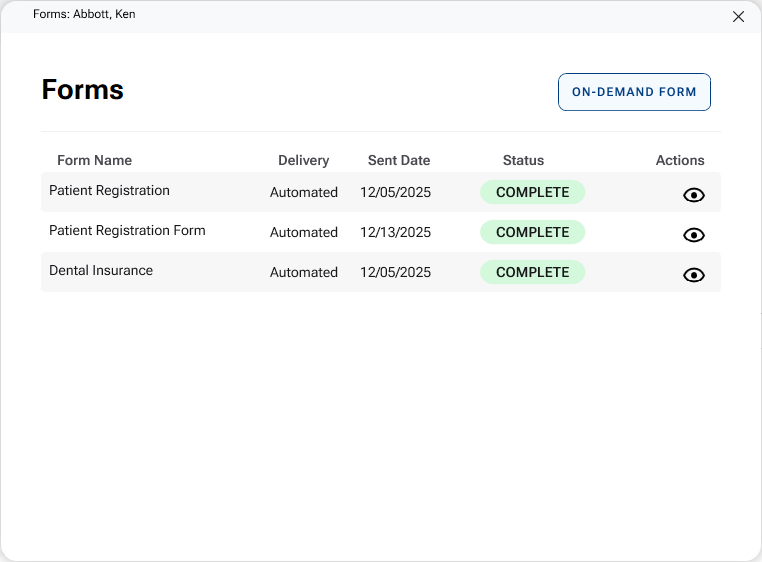
5. Click On-Demand Form.
The Send On-Demand Form screen appears.
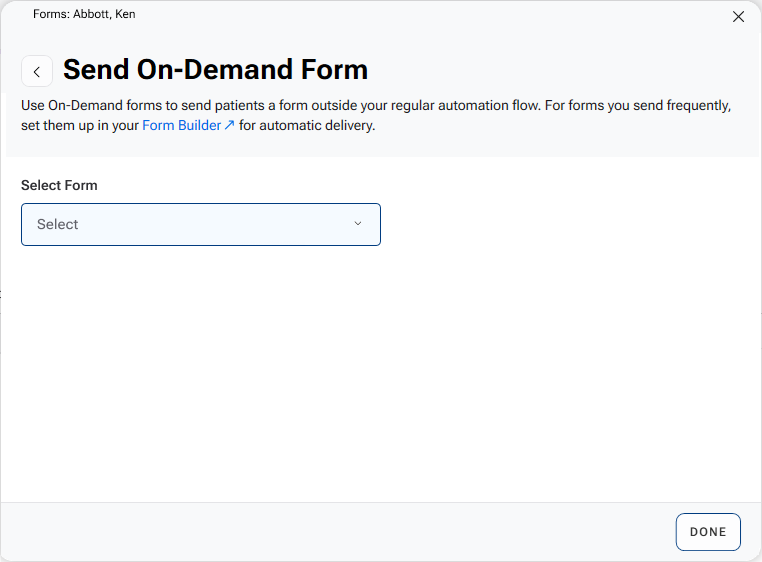
6. From the Select Form list, select one or more On-Demand forms to send to the patient.
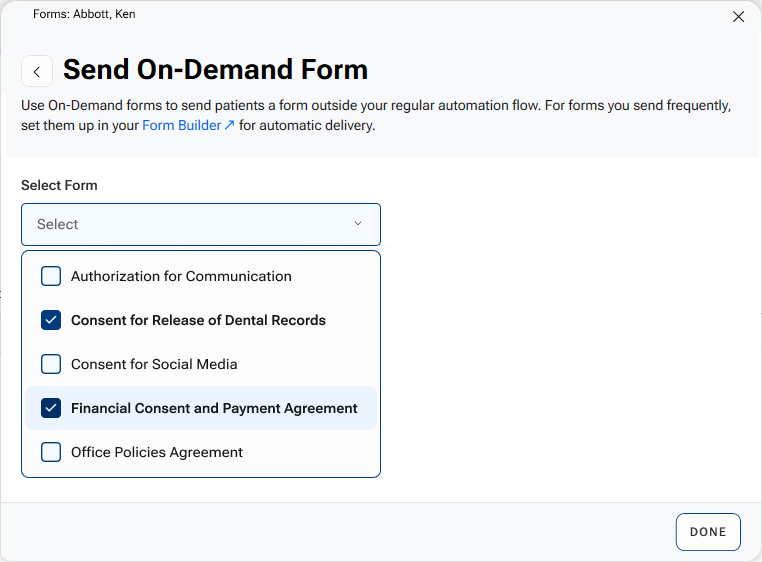
7. To send the selected forms, select one or both of the following delivery options, and then click Done:
Send Form – Click to send a notification to the patient via email message and/or mobile phone as configured in the Forms Builder.
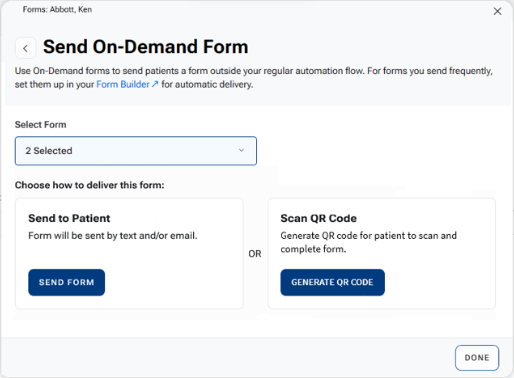
Generate QR Code – Click to generate a QR code for the patient to scan using a tablet or mobile phone to complete the selected forms at your office.