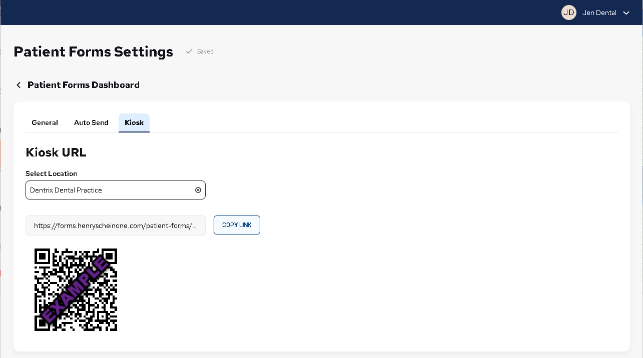
The Patient Forms Dashboard integrates with Dentrix to simplify patient registration, update data automatically, and reduce administrative tasks. You can open the Patient Forms Dashboard from several Dentrix modules.
To open the Patient Forms Dashboard
1. In a Dentrix module, such as the Appointment Book, click the Forms toolbar button.
The Forms Builder opens in your default web browser.
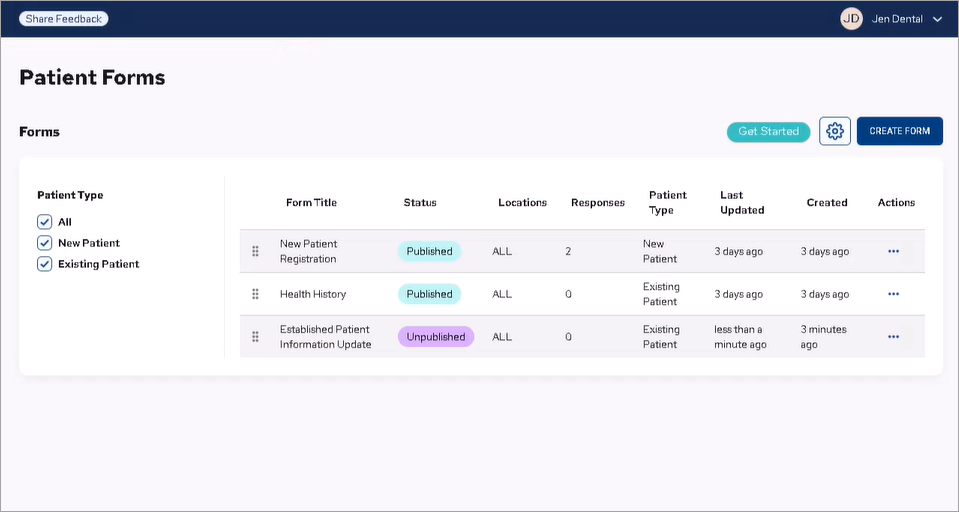
2. Click the Settings button  .
.
The Patient Forms Dashboard appears.
3. Click the General tab, and then complete the following:
Timezone – From the list, select your practice's time zone.
Practice Logo – To personalize your forms, upload an image (PNG, GIF, or JPG) of your practice's logo.
4. Click the Auto Send tab.
The Auto Send Settings webpage appears.
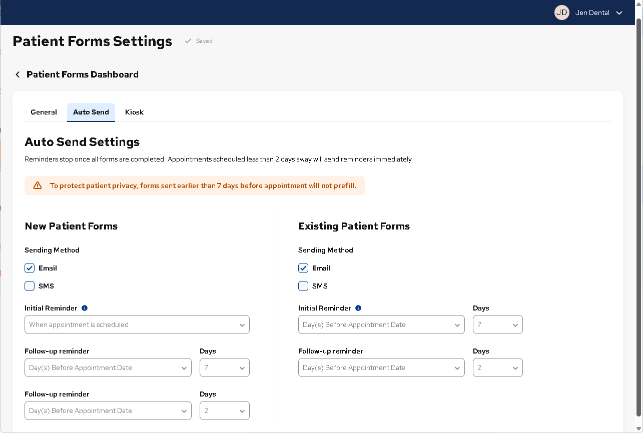
5. Under New Patient Forms and Existing Patient Forms, select how to send notifications to your patients: Email, SMS (text), or both.
You can send reminders automatically when the appointment is scheduled, or you can send them a specified number of days before the appointment.
Initial Reminder – When appointment is scheduled: Select the scheduled appointment date.
Follow-up reminder – Day(s) Before Appointment Date: Select the number of days before the appointment to send a reminder.
Follow-up reminder – Day(s) Before Appointment Date: Select the number of days before the appointment to send a second reminder.
6. If a patient cannot receive a personal email message or a text message, click the Kiosk tab, and then retrieve a URL or QR code to allow patients to complete forms.