
Your dental practice needs to know about a patient's medical health history prior to treatment for several important reasons. The challenge in a health history form is to find the balance between asking too many questions, which can lead to form fatigue and abandonment, and asking too few questions, leaving you without crucial information. To strike the balance that is right for your practice, you can customize the list of medical conditions and allergies that appear in a Health History form.
Note: You can format allergy and medical condition questions in two ways:
Dropdown list – Use to save screen space. Typically, you use a dropdown list only when you want a patient to select one or two conditions.
Yes/No questions – Use when there are multiple independent conditions that each need an answer, and you want your patient to consider each choice.
To customize medical conditions and allergy lists in a Health History form
1. In a Dentrix module, such as the Appointment Book, click the Forms toolbar button, and then from the Patient Forms screen, click Create Form.
The All Templates screen appears.
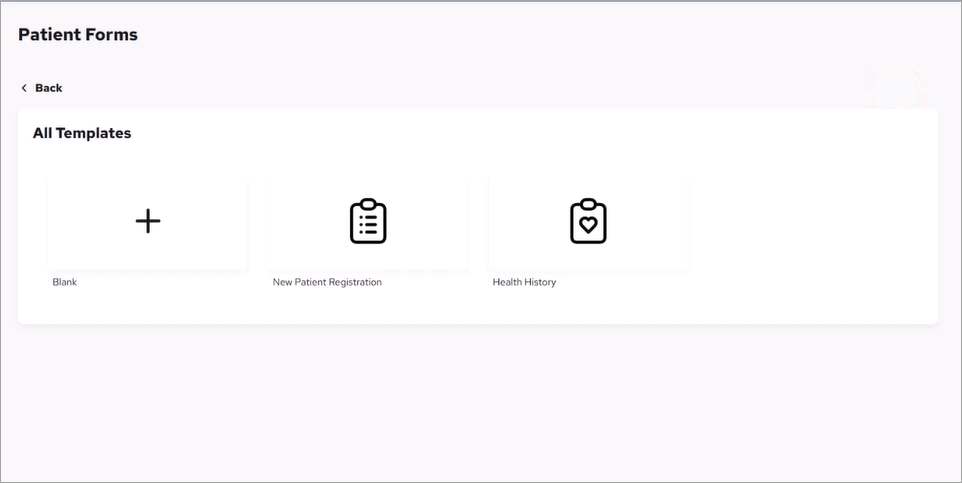
2. Click Health History.
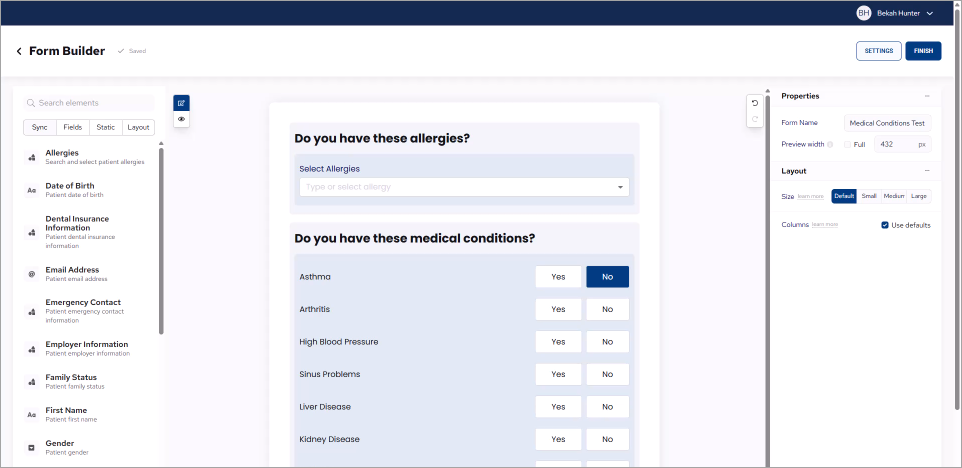
A preview of the Health History template appears.
Notes:
The Form Builder preview does not reflect your actual list of medical conditions and allergies. You determine the actual list of medical conditions and allergies that appear in your practice's Patient Form through settings in the Health History module.
By default, responses to both questions in the template are formatted as dropdown lists.
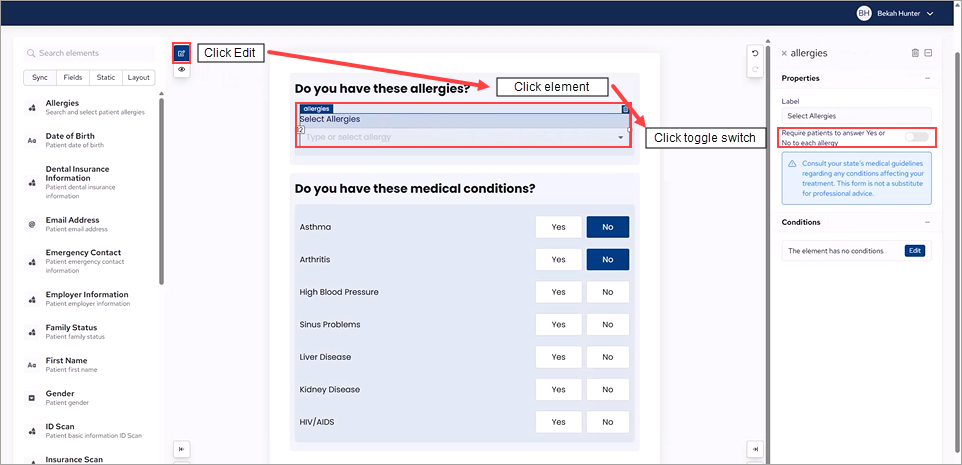
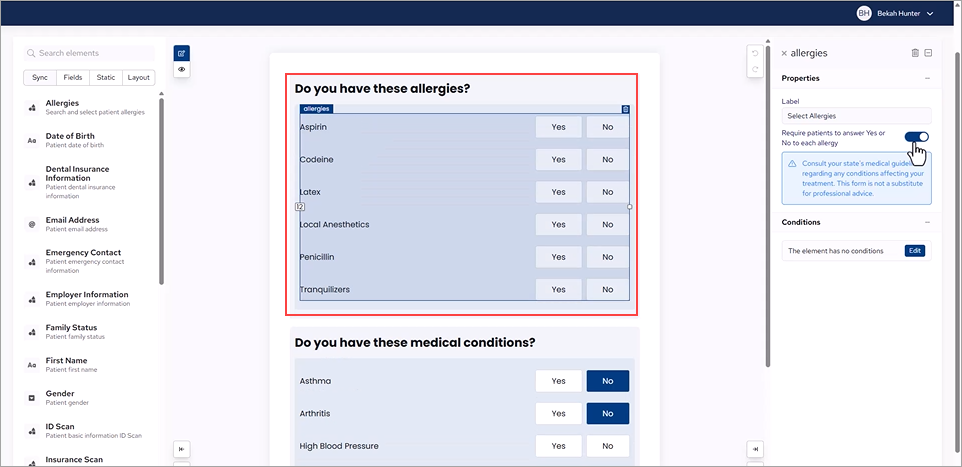
3. To change the default setting from a dropdown list to Yes/No questions, change to Edit mode, click the element, and then under Properties, click the Require patients to answer Yes or No to each allergy toggle switch.
The questions change to Yes or No.
4. To set the number of medical conditions and allergies, open Health History, and then click the Setup icon.
The Health History Setup dialog box appears.
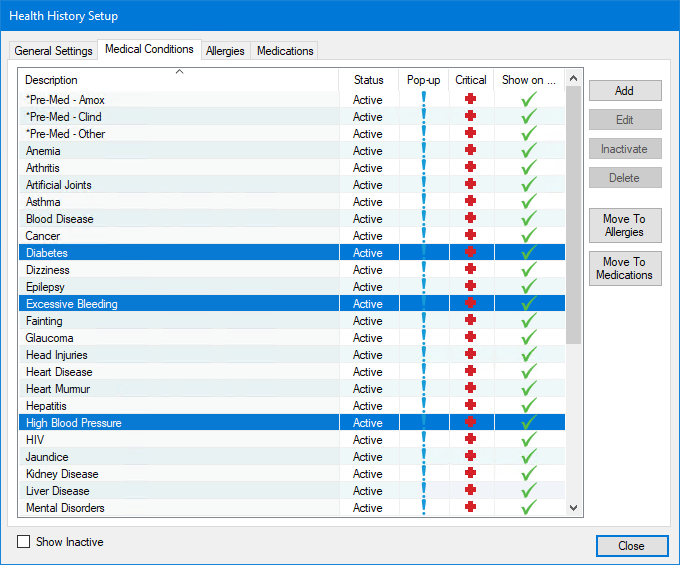
5. Click the Medical Conditions tab.
6. Click the condition you want to appear in your Health History form, and then click Edit.
The Edit Medical Condition dialog box appears.
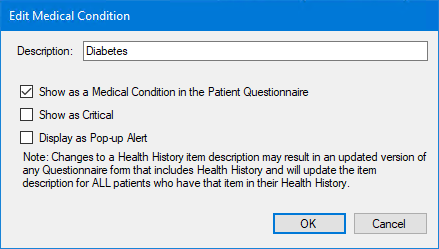
7. Select Show as a Medical Condition in the Patient Questionnaire, and then click OK.
8. To add multiple conditions, do the following:
Press the Ctrl key and then click each condition you want to add.
Right-click a selection, point to Change Show on Questionnaire Status, and then click Add all selected items to the applicable Questionnaire forms.