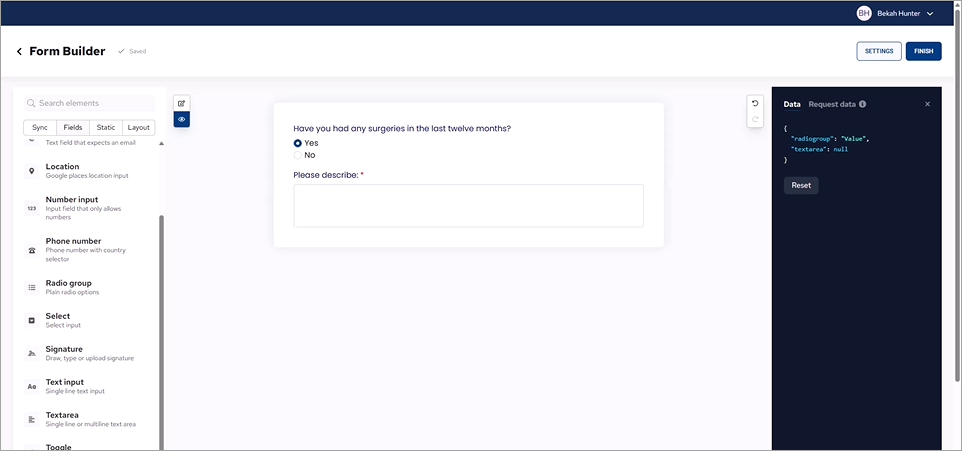
Conditional fields are those parts of a form that appear depending on the answer to a previous question. Conditional fields in a patient's form can streamline the work of filling out the form by only showing elements relevant to that patient's circumstances. Showing fields only as needed can improve the efficiency of the process and enhance the patient experience.
To add a conditional field to a form
1. In a Dentrix module, such as the Appointment Book, click the Forms toolbar button, and then from the Patient Forms screen, click Create Form.
The All Templates options appear. You can create a form from scratch or from a template.
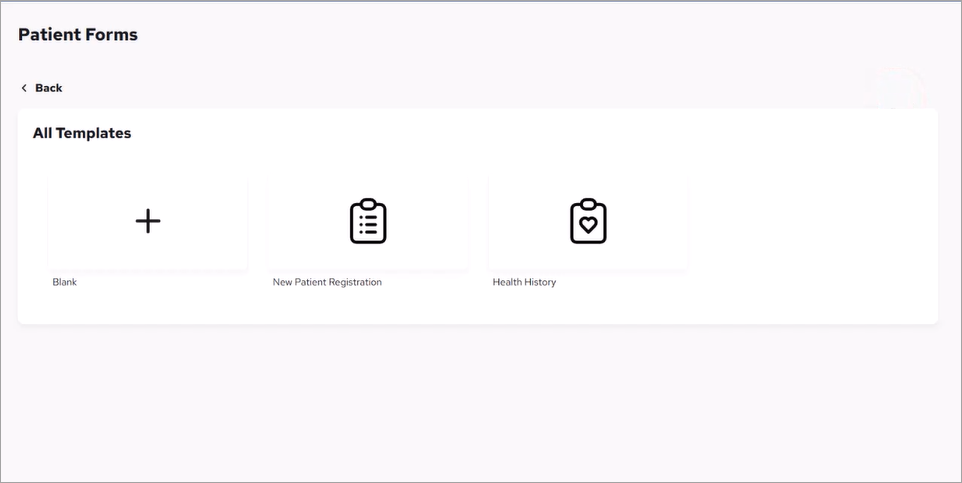
2. Click Blank, or one of the templates.
The Form Builder page appears.
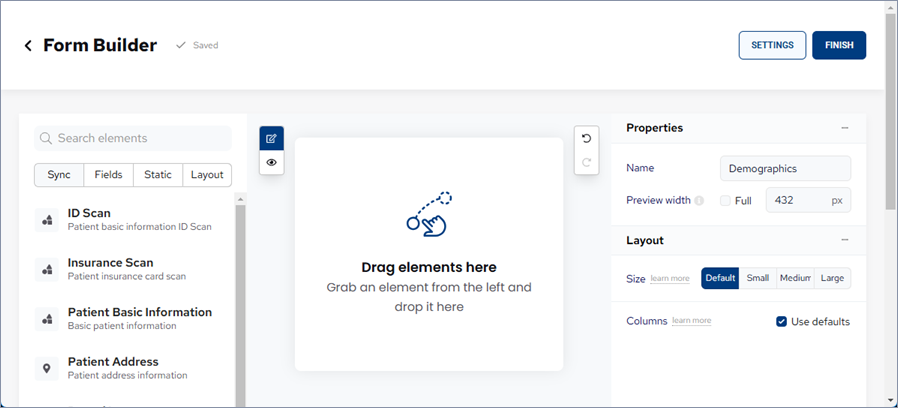
3. To add a conditional element, click the Fields tab.
a. Click the desired element (Radio group, for example), and then drag it to the workspace area.
Note: You must first use a question to trigger a conditional response.
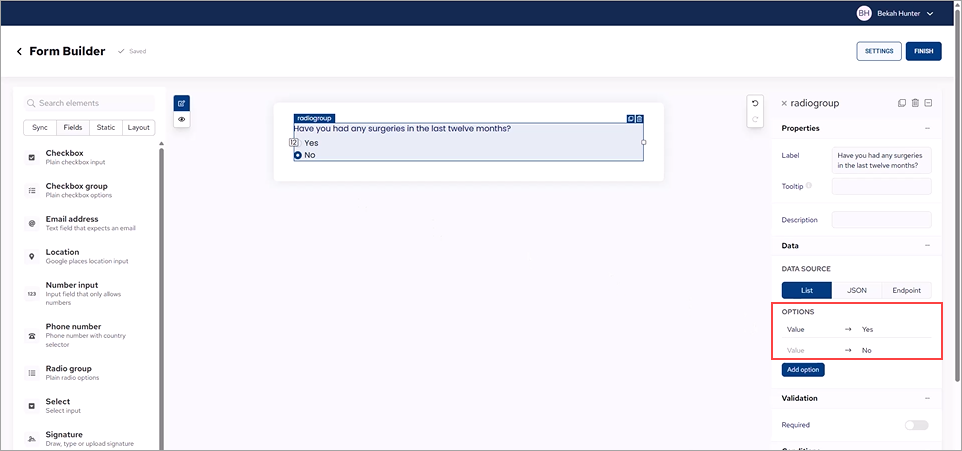
b. In the Label text box under Properties, type the question you want the patient to respond to.
Note: For example, you may want to ask if your patient has had any recent surgeries and make it a Yes or No question.
c. Under Options, next to Value, type Yes. Type No for the other Value.
4. To add a text box for the patient's response if the answer is Yes, click the Layout tab, and then click and drag Container to the workspace below the Yes/No elements.
Note: If the container is conditional, anything you add to the container is conditional.
5. To allow for a free text response, click the Fields tab, and then click and drag Textarea to the workspace.
6. In the Label text box under Properties, edit the label from Textarea to a phase like "Please describe" to elicit a description of a recent surgery.
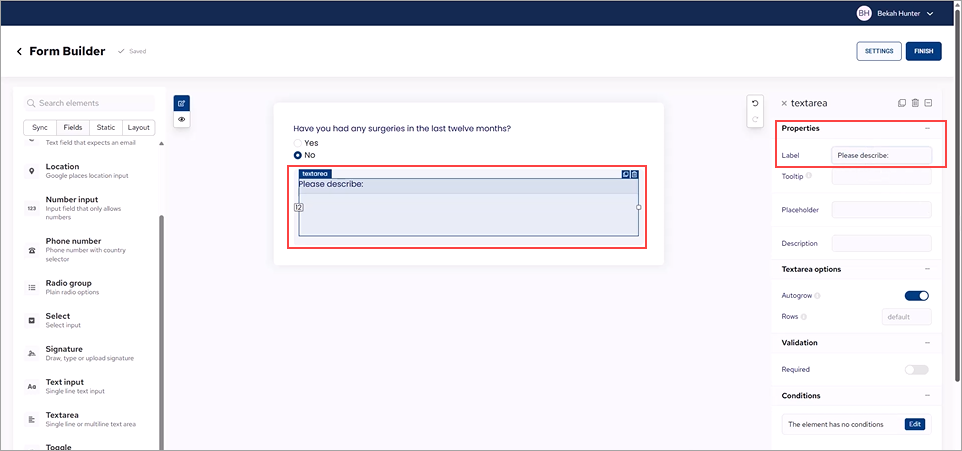
7. To require an answer, under Validation, click the Required toggle switch.
8. To make this section conditional, under Conditions, click Edit.
The Conditions dialog box appears.
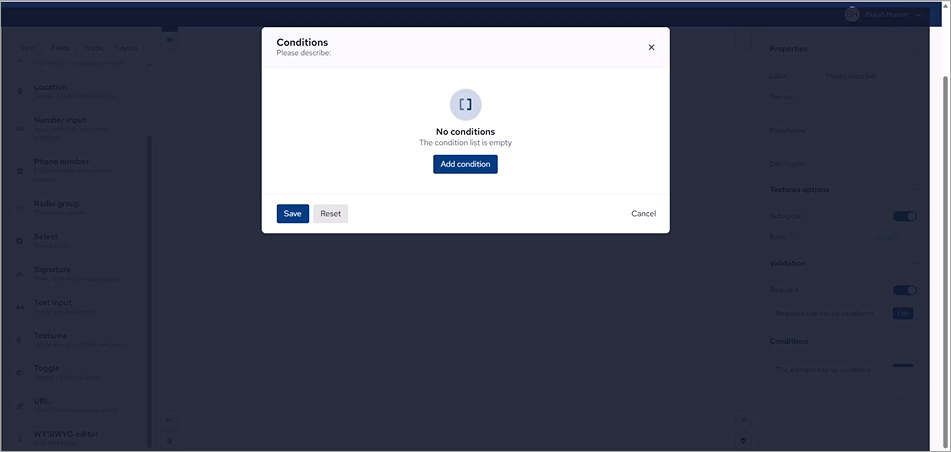
9. Click Add Condition, and then set the condition parameters.
For example, select radiogroup > is equal to > Yes.
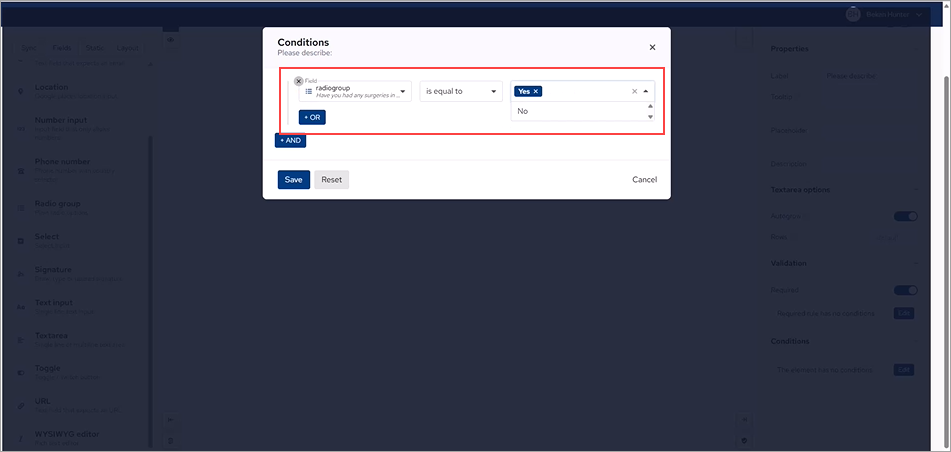
10. Click Save.
Note: In Edit mode, conditional elements do not have focus and appear "grayed out."
11. To test your conditional field, click the Preview icon.
With No selected no other elements appear. When you click Yes, the conditional field appears.