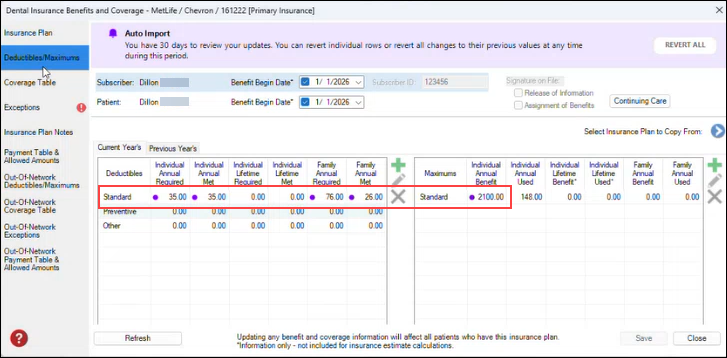
Auto import is only available to Eligibility Pro subscribers and their patients who subscribe to MetLife dental plans.
To enable auto import
1. In the Office Manager, click Maintenance, point to Practice Setup, and the click Preferences.
The Preferences dialog box appears.
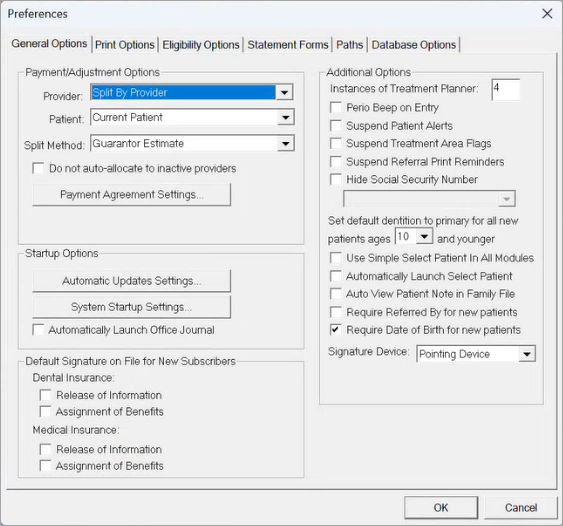
2. Click the Eligibility Options tab.
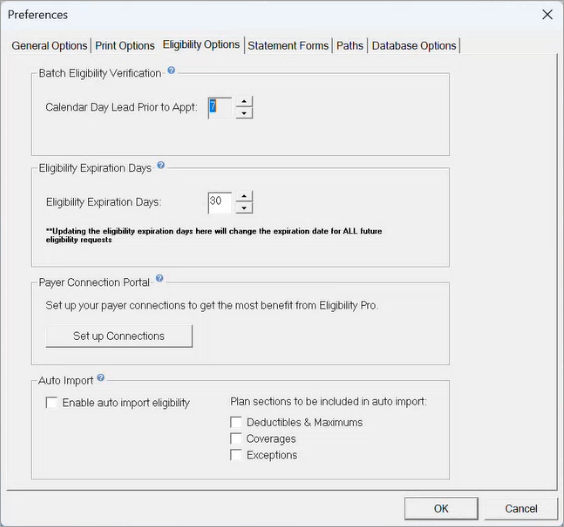
3. Under Auto Import, select Enable auto import eligibility.
By default, all options under Plan sections to be included in auto import are selected.
Note: To remove a section or sections from auto import, clear the corresponding check box.
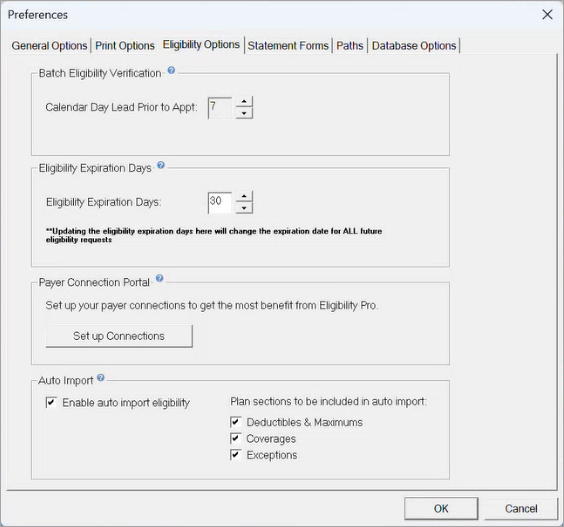
4. To enable auto import, click OK.
Notes:
Once you have enabled auto import, any values that have changed after an import appear with a purple dot next to them in the the Dental Insurance Benefits and Coverage dialog box.
You have 30 days to review any updates. You can revert individual rows or revert all changes to their previous values at any time during this 30-day period.