
You can use the Claim Tracking Upload Override option to select certain criteria for searching outstanding claims.
To perform a claim tracking upload override
1. In the DXWeb toolbar, click Upload, and then in the submenu, click Claim Tracking Override.
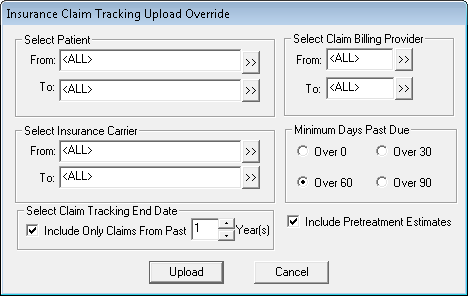
The Insurance Claim Tracking Upload Override dialog box appears.
2. Do the following:
· Select Patient - Click the From and To search buttons and select the first and last patients for the range from the Select Patient dialog box, or leave <ALL> selected.
· Select Insurance Carrier - Click the From and To search buttons and select the first and last insurance carriers for the range from the Select Dental Insurance Plan dialog box, or leave <ALL> selected.
· Select Claim Tracking End Date - Select Include Only Claims From Past and then select the number of years from the spin box.
· Select Claim Billing Provider - Click the From and To search buttons and select the first and last providers for the range from the Select Provider dialog box, or leave <ALL> selected.
· Minimum Days Past Due - Select the number of days claims are past due. The default is Over 60.
· Include Pretreatment Estimates - Select to include pretreatment estimates.
3. Click Upload.
The DXWeb Upload list appears containing all the claims matching the criteria you selected.