
If you have a modem, Dentrix makes calling patients easier by showing the patient's available phone numbers and then dialing the chosen number. Additionally, you can enter notes about the phone call that are automatically added to the Office Journal.
To make a phone call from the Continuing Care list
1. From any Dentrix module's toolbar except the Office Manager, click the Continuing Care button.
The Continuing Care window appears.
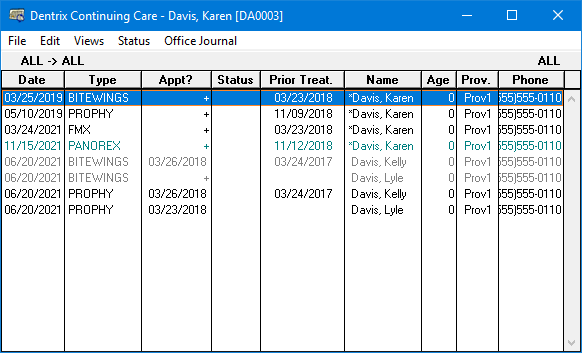
2. Click Office Journal.
The Office Journal window appears.
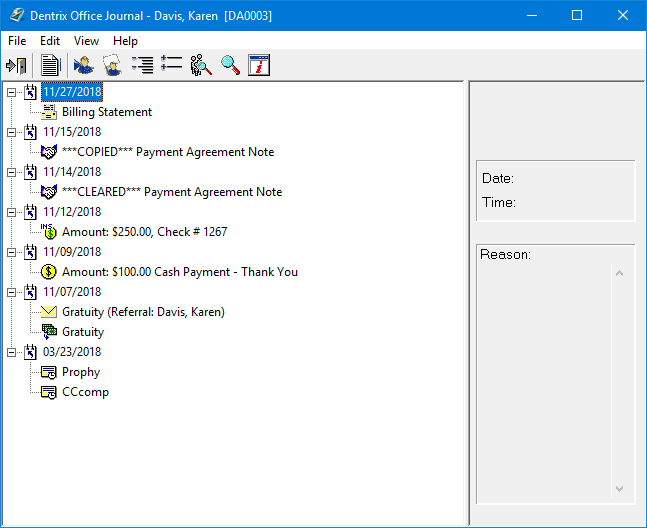
3. In the Edit menu, click Add.
The Add Journal Entry dialog box appears.
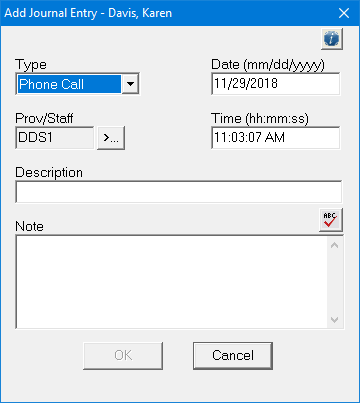
4. Click the More Info button in the upper-right corner of the dialog box.
The More Information dialog box appears.
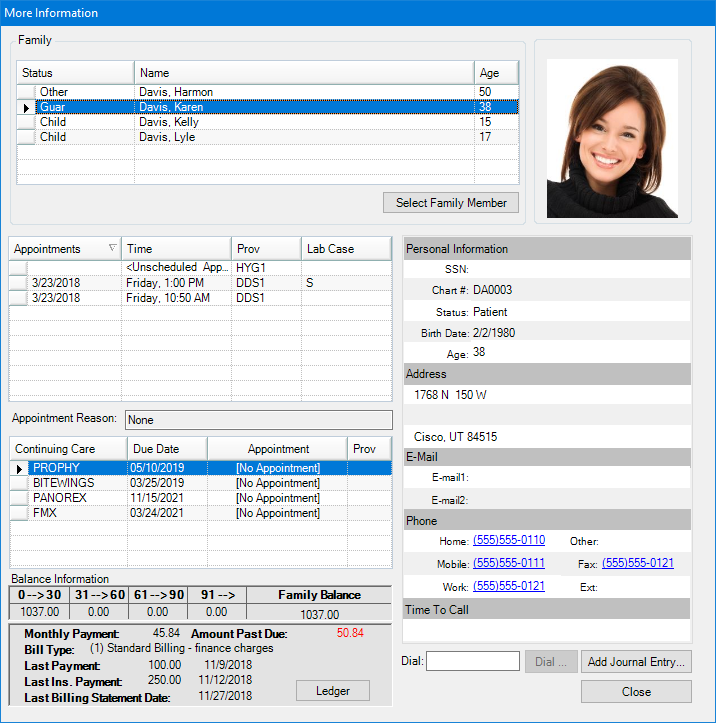
5. Under Phone, click the number that you want to call.
Note: To use this feature, you must configure telephony correctly on the computer.
The Dial dialog box appears.
6. Click Dial and pick up your telephone handset.
7. Type any notes regarding the call in the Note text field of the Add Journal Entry dialog box and click OK.
An entry is added to the Office Journal for the selected patient.
8. From the File menu in the Office Journal, click Exit.