
To use Practice Pay, you must have internet access and an active Worldpay merchant account. With Practice Pay, you can accept a patient’s credit or debit card payment without using a payment device, or you can take a patient’s credit or debit card payment even when a patient’s card is not saved and/or you cannot connect to a payment device. To set up Practice Pay, you must first set up Dentrix Pay. To learn more about using Practice Pay, click Practice Pay overview.
To set up Practice Pay
1. In the Office Manager, click Maintenance, point to Practice Setup, and then click Practice Pay Setup.
The Practice Pay Settings dialog box appears.
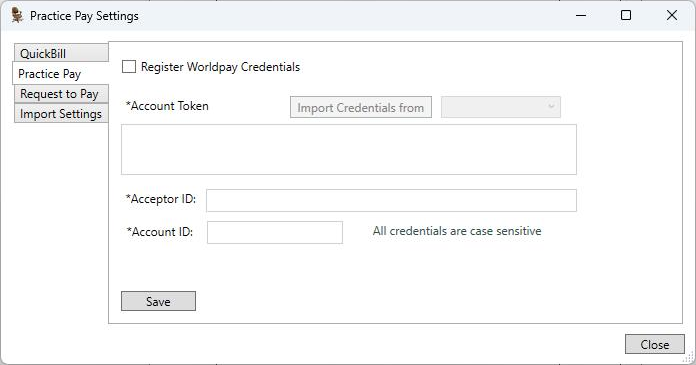
2. Select Register Worldpay Credentials.
3. Do one of the following:
To import your Worldpay credentials:
Click Import Credentials from, and then from the list, click Dentrix Pay, Request to Pay, or QuickBill.
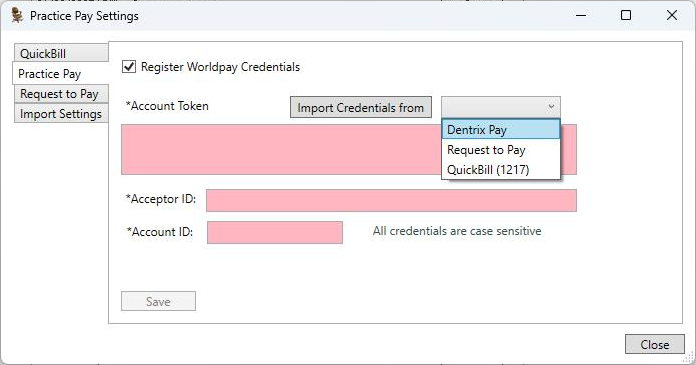
To enter your Worldpay credentials manually:
Account Token – Type or paste your account token.
Acceptor ID – Type your acceptor ID.
Account ID – Type your account ID.
4. Click Save.
5. (Optional) Click Import Settings.
Note: The import settings options you select all imported online payments.
a. Complete the following:
Select the Payment Type that you want to use for imported payments.
Select whether the payment date is recorded as the online process date or the date the payment is posted to the Ledger.
As necessary, adjust other options. (Options may differ depending on the version of Dentrix installed.)