
You can use a payment table when an insurance carrier always pays the same fee for a procedure, rather than a percentage. You can update the insurance payment table whenever you receive payments from a carrier to maintain the accuracy of the table and to facilitate calculating insurance estimates. You can either enter procedures into the payment table manually, or if you itemize insurance payments, you can update the payment table whenever you post a payment to a claim.
You can delete one or more payment table entries, or you can clear the entire payment table.
Important:
· Updating any benefit and coverage information will affect all patients covered by the insurance plan you are updating.
· If a procedure is in the coverage table and the payment table, the amount in the payment table overrides the amount in the coverage table.
To delete a payment table entry
1. In the Office Manager, click Maintenance, point to Reference, and then click Insurance Maintenance.
The Insurance Maintenance dialog box appears.
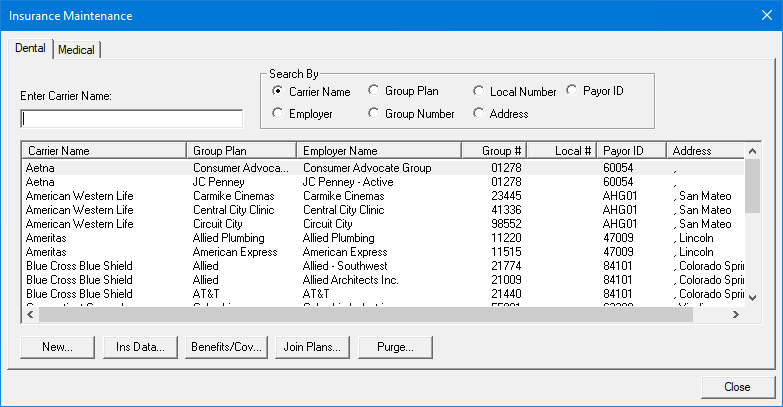
2. Select the insurance carrier that you want to delete a payment table entry from, and then click Benefits/Coverage.
The Dental Insurance Benefits and Coverage dialog box appears.
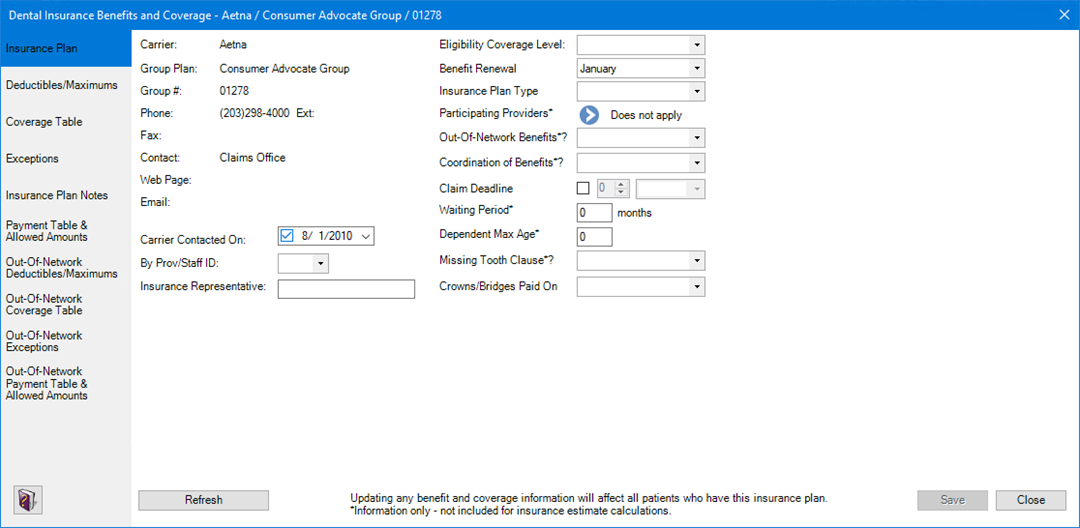
3. Click the Payment Table & Allowed Amounts tab.
The Payment Table and Allowed Amounts table appears.
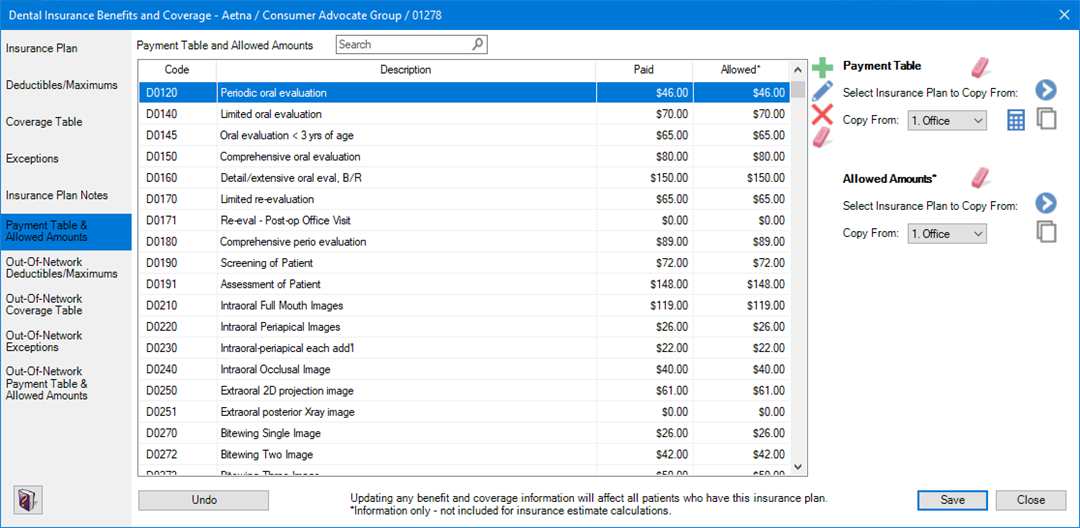
4. Do one of the following:
Note: You
can also clear all of the amounts in the Allowed
column by clicking Clear Allowed Amounts  .
.
· To delete
one or more payment table entries, select the entry or entries that you
want to delete, and then click Delete  .
.
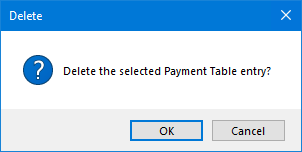
The following message appears.
· To delete
the entire payment table, click Clear .
The following message appears.
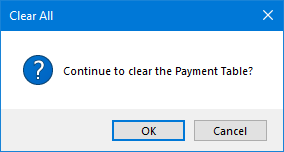
5. To confirm the deletions, click OK.
6. Do one of the following:
· To undo your changes, click Undo.
· To save your changes, click Save.