
Using the coverage table, you can group several procedures into categories and assign the percentage the insurance will pay. You may also limit a category to a single procedure. When you edit a coverage table, you must use the ADA procedure codes, but you may not overlap the beginning and ending procedure codes in any given range.
Note: Updating or changing any benefit and coverage information will affect all patients who subscribe to the selected group plan.
To apply a standard coverage table
1. In the Office Manager, click Maintenance, point to Reference, and then click Insurance Maintenance.
The Insurance Maintenance dialog box appears.
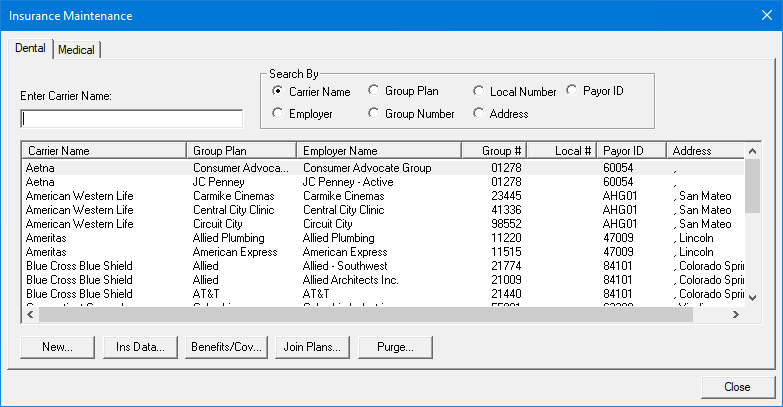
2. Select the carrier that you want to apply a standard coverage table to, and then click Benefits/Coverage.
The Dental Insurance Benefits and Coverage dialog box appears.
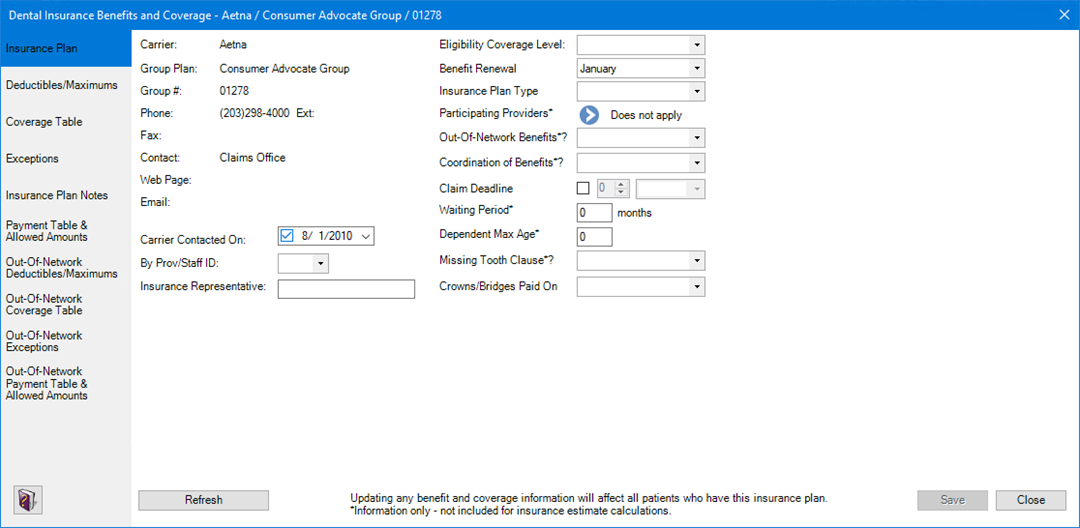
3. Click the Coverage Table tab.
The Coverage Table appears.
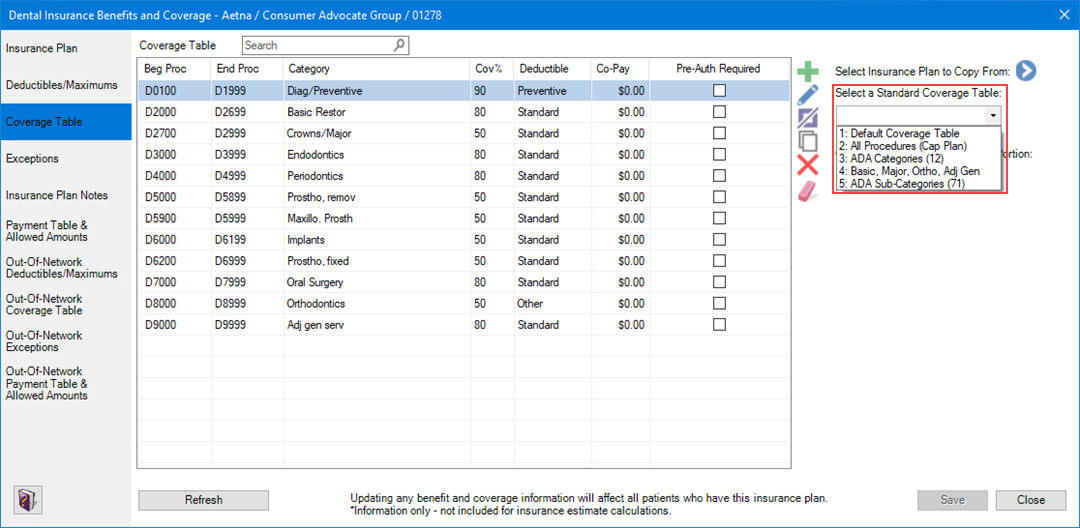
4. Under Select a Standard Coverage Table, click the Down arrow, and then select the appropriate coverage table from the list:
· Default Coverage Table – Assigned automatically when you add a new insurance plan.
· All Procedures (Cap Plan) – Requires specific co-pay amounts for each procedure. To learn more, click Entering capitation type plans.
Note: Select a Co-Payment Calculations for Ins. Portion menu option only when one or more co-pay amounts are entered in the coverage table. Usually, Dentrix estimates the patient portion owed by subtracting the calculated insurance portion from the amount for the procedure. When you use co-payments, the patient portion is the amount shown in the Co-Pay column of the coverage table, or less, for procedures in the category range (even if the amount is $0.00). The Co-Payment Calculations for Ins. Portion menu option you select is used to calculate the insurance portion for all procedures. When you use co-payments, the total of the patient portion and the insurance portion may be less than the procedure amount, depending on the option you selected and the percentage entered in the Cov% column.
· Categories (12) –
· Basic, Major, Ortho, Adj Gen –
· Sub-Categories (71) –
The Copy Insurance Coverage Table dialog box appears.
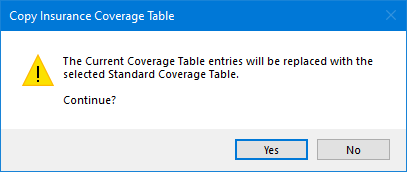
5. Click Yes, and then edit the coverage table categories as necessary.
6. Do one of the following:
· To save your changes, click Save.
· To undo your changes, click Undo.