
You can use the payment table to enter the dollar amount that an insurance plan pays for specific procedures. As you receive payment from insurance providers, you may update the insurance coverage. The actual payment information is stored in the payment table. You can either enter procedures into the payment table manually, or if you itemize insurance payments, you can update the payment table whenever you post a payment to a claim.
Important:
· Updating or changing any benefit and coverage information will affect all patients who subscribe to the selected group plan.
· If a procedure is in the coverage table and the payment table, the amount in the payment table overrides the amount in the coverage table.
· Out-of-network payment and allowed amounts table entries are for information only and are not included in insurance estimate calculations.
To add a procedure to an out-of-network payment table
1. In the Office Manager, click Maintenance, point to Reference, and then click Insurance Maintenance.
The Insurance Maintenance dialog box appears.
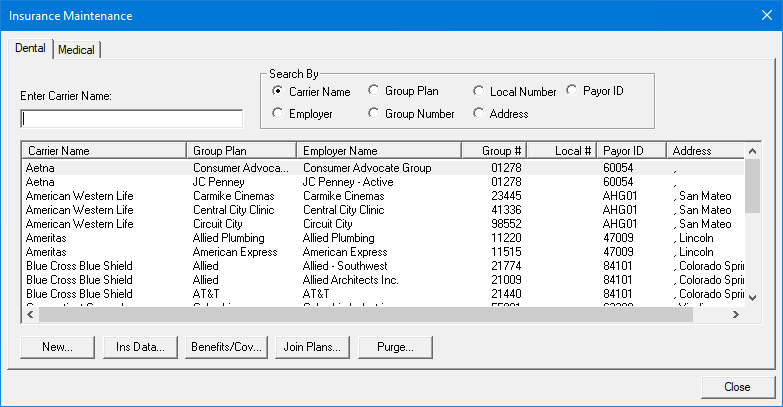
2. Select the insurance carrier that you want to delete a payment table entry from, and then click Benefits/Coverage.
The Dental Insurance Benefits and Coverage dialog box appears.
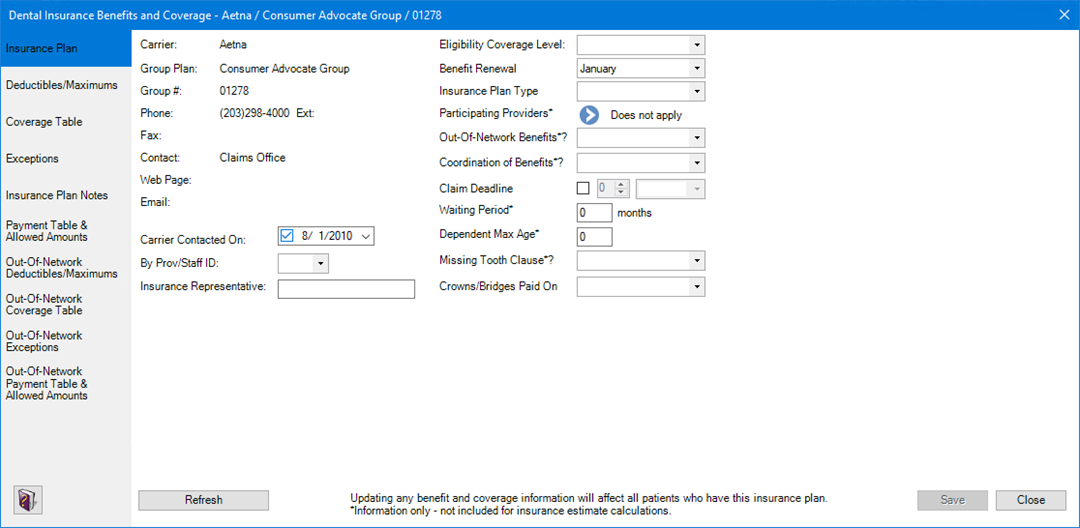
3. Click the Out-Of-Network Payment Table & Allowed Amounts tab.
The OON Payment Table and Allowed Amounts table appears.
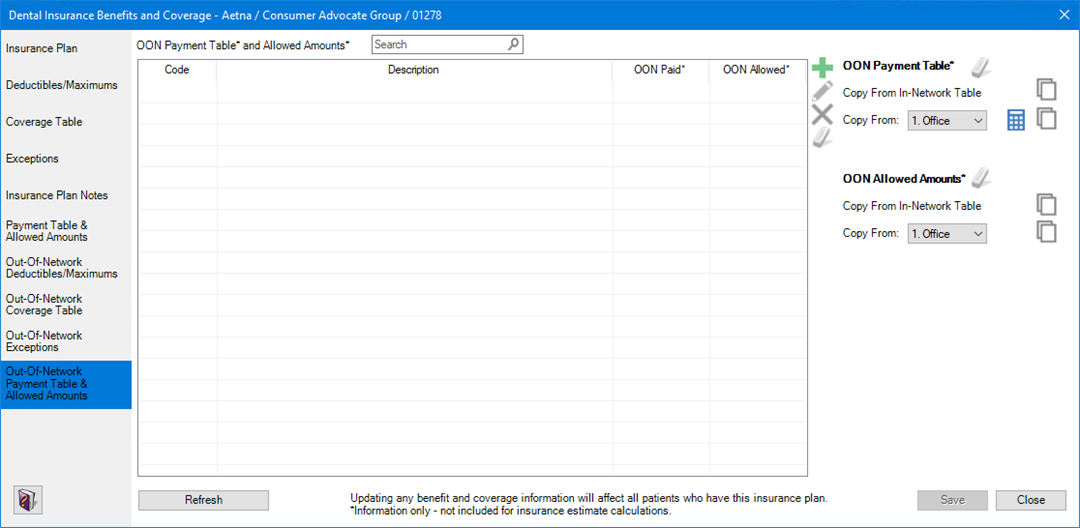
4. To
add a procedure code, click Add  , and
then do one of the following:
, and
then do one of the following:
· Type the procedure code that you want to add under Code.
· Click the Down arrow, click the type of code, and then select the code from the list.
5. If you typed the procedure code, press the Tab key, and then type a description of the code.
Note: If you selected the code from the Procedure Code List, the description appears automatically.
6. Do the following:
· OON Paid – Type the amount the insurance provider paid for the procedure.
· OON Allowed – Type the insurance provider's allowed amount for the procedure.
7. Click Save.