
Dentrix lets you analyze each referral that you receive. At a glance, you can view the number of referrals you have received and how much those referrals have added to your practice's bottom line. You can also set up, record, and analyze any gratuities you have given to anyone who has referred new patients to your practice.
To analyze a referral source
1. In the Office Manager, click Maintenance, point to Reference, and then click Referral Maintenance.
The Referral Maintenance dialog box appears.
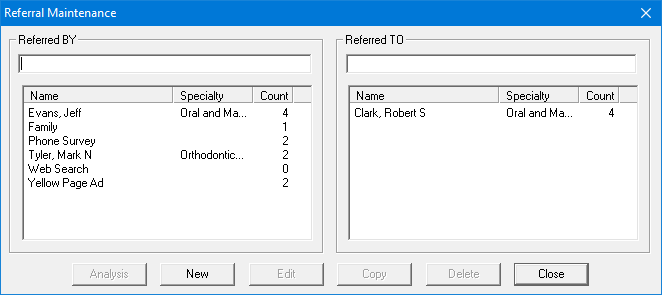
2. Under Referred BY, select the referral that you want to analyze and click Analysis.
The Referral Analysis dialog box appears.
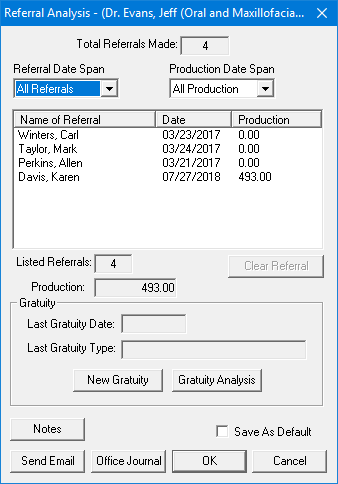
3. To change the Referral Date Span, select one of the following options from the list:
All Referrals - Lists all referrals associated with the referral source.
Last 30 Days - Lists all referrals in the last 30 days associated with the referral source.
Last 6 Months - Lists all referrals in the last 6 months associated with the referral source.
Last 12 Months - Lists all referrals in the last 12 months associated with the referral source.
Year-To-Date - Lists all referrals for the year up to the current date associated with the referral source.
4. To change the Production Date Span, select one of the following options from the list:
All Production - Lists production totals associated with the referral source.
Last 30 Days - Lists production totals in the last 30 days associated with the referral source.
Last 6 Months - Lists production totals in the last 6 months associated with the referral source.
Last 12 Months - Lists production totals in the last 12 months associated with the referral source.
Year-To-Date - Lists production totals for the year up to the current date associated with the referral source.
None - Lists no production totals.
5. Do one or more of the following:
To add a gratuity, click New Gratuity.
To analyze the gratuities given to the referral source, click Gratuity Analysis.
To enter a note, click Notes.
To send a message electronically, click Send Email.
To open the Office Journal, click Office Journal.
6. Select Save As Default to save any changes you made as the default settings for analyzing referrals, and then click OK.