
Before using eClaims, you must first register by calling the Sales department. Please call 1-800-366-8749 option 1, then option 2 for more information.
Once you have registered, you must set up eTrans and adjust a few Dentrix settings to accommodate the electronic claims submission process.
To learn more about submitting claims electronically, click Submitting claims electronically.
To set up electronic claims
1. In the Office Manager, click Maintenance, point to Practice Setup, and then click Electronic Claims Setup.
The eTrans Setup dialog box appears.
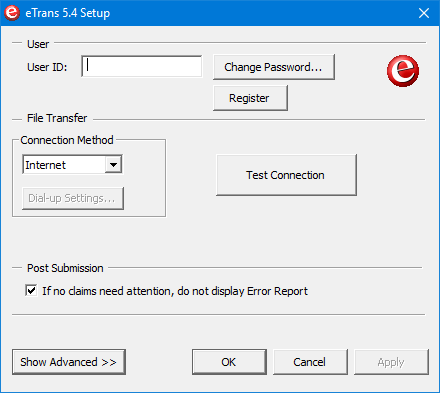
2. Type your user ID, and make note of the letter (an E or a D) at the end of your user ID.
Your user ID was emailed to you with your eTrans Welcome Kit.
3. Click Change Password.
The Change eTrans Password dialog box appears.
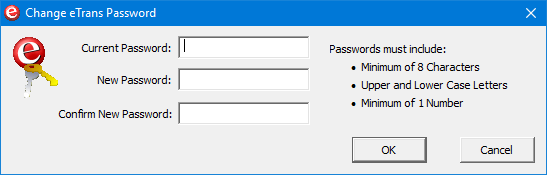
4. Type the password that was emailed to you with your eTrans Welcome Kit in each text box, and then click OK:
Current Password
New Password
Confirm New Password
5. Under Connection Method, select Internet.
6. Click Show Advanced to verify that the correct URL appears in the Server text box.
Notes: The URL is determined by the letter at the end of the eTrans ID:
The letter D signifies that the server URL should be gateway.nationalinfo.com.
The letter E signifies that the server URL should be ez-gateway.nationalinfo.com.
7. If necessary, select Suppress warning messages on eClaims Pre-submission Summary.
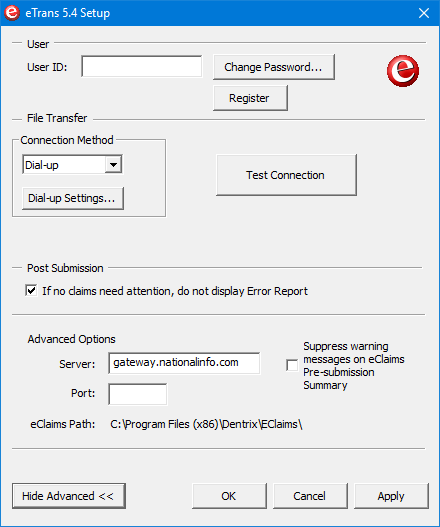
8. Click Apply, and then click OK to accept your changes.