
Whether you create your own procedure codes or purchase them, by default Dentrix lists every procedure code in the Procedure Codes panel of the Patient Chart. Hiding a procedure code so that the only codes that appear are those that you use most often reduces the size of the list making it easier and faster to add treatment.
To show or hide a procedure code
1. In the Maintenance menu in the Office Manager, point to Practice Setup, and then click Procedure Code Setup.
The Procedure Code Setup dialog box appears.
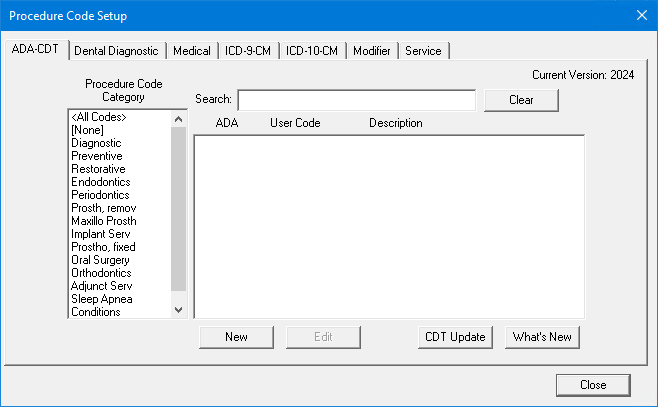
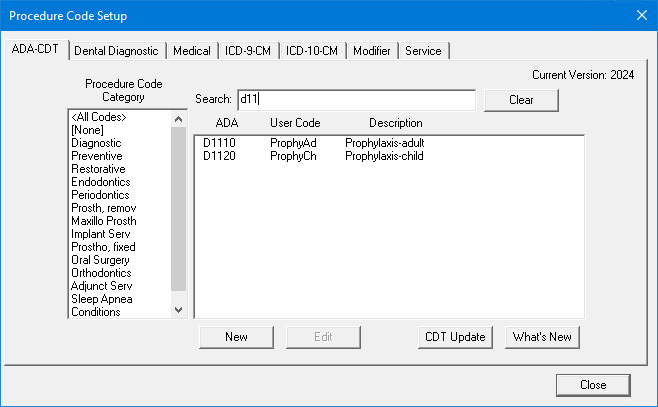
2. To select a code, do one of the following:
Type the first few characters of the ADA code, user code, or description in the Search text box.
Select a Procedure Code Category and code from the respective list.
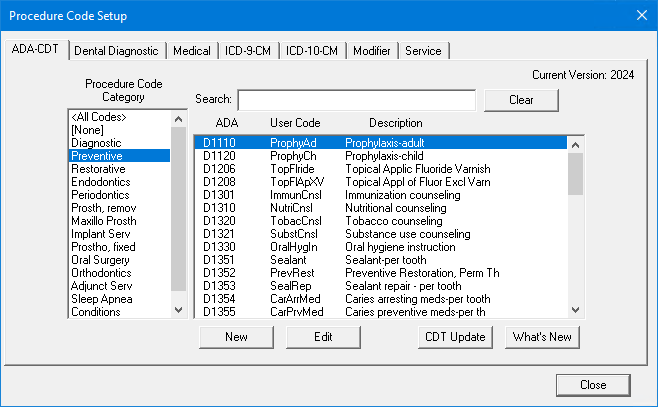
3. Click Edit.
The Procedure Code Editor - Existing dialog box appears.
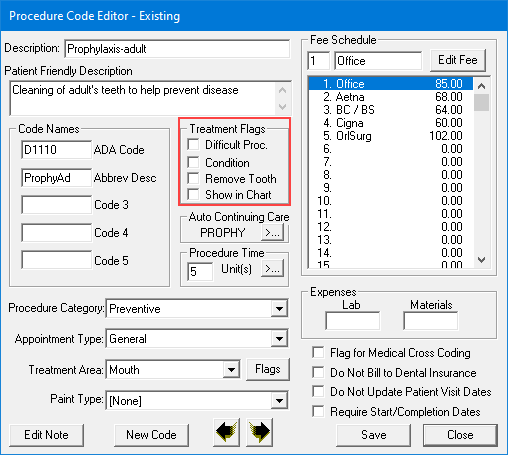
4. Under Treatment Flags, clear Show in Chart, and then click Save.
A confirmation message appears.
5. Click Yes to confirm, and then click Close twice.
6. If you have the Patient Chart open, from the File menu, click Refresh.
The procedure code no longer appears in the Procedure Codes panel.
Note: If the Patient Chart is open, you must refresh the Patient Chart before the new settings will take effect.