
If you have enabled passwords, whoever enables and manages Dentrix must have the administrative permission to do so.
Notes:
Even if your providers and staff have full administrative permissions, you must extend the "Dentrix Pay, Settings" permission to whoever enables and manages Dentrix Pay. You do not need to grant this permission to those who use Dentrix Pay to post payments, void payments, issue refunds, and so on.
You can grant the same permission to other providers and staff, but you may want to limit Dentrix Pay management to one or two persons.
If you have enabled passwords, when you try to enable or manage Dentrix Pay, you may receive the following message: "The current user does not have the right to this operation. Temporarily override with a different user?" You can either override with a user who has the administrative permission or if you have full administrative permissions, grant that Dentrix Pay administrative permission to yourself.
To grant Dentrix Pay administrative permissions
1. In the Office Manager, click Maintenance, point to Practice Setup > Passwords, and then click User Passwords Setup.
The Setup User Permissions dialog box appears.
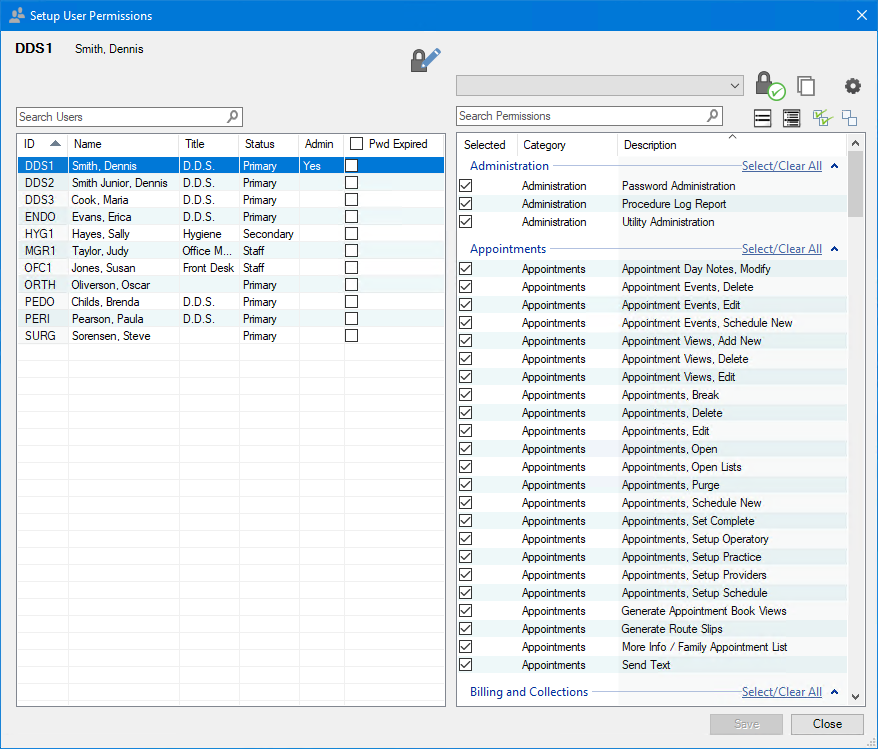
2. Select the user you want to grant the permission to, and then expand the Practice Setup category.
3. From the Practice Setup list, select Dentrix Pay Settings.
4. Click Save.
The Admin Password message box appears.
5. Click OK.
6. Click Close.