
The Treatment Plan Statistics Analysis Report includes an analysis of the procedures that have been completed or treatment-planned during a specified range.
To generate the report
1. In the Office Manager, click Reports, point to Management, and then click Treatment Plan Statistics Analysis.
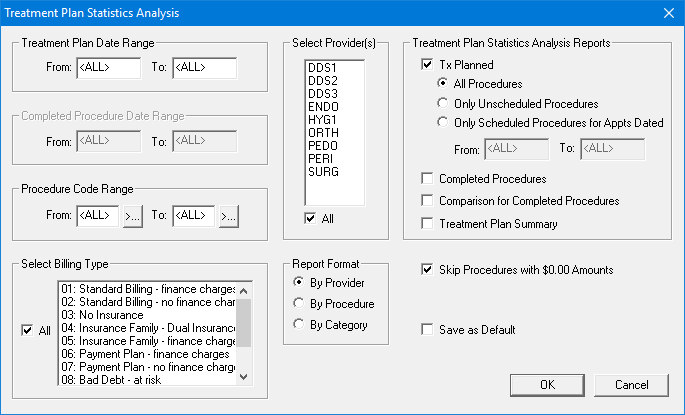
The Treatment Plan Statistics Analysis dialog box appears.
2. Do the following:
· Treatment Plan Date Range - Type a date range for treatment-planned procedures in the From and To fields. Or, leave <ALL> entered in both fields to include treatment-planned procedures for all dates.
· Procedure Code Range - Select the range of procedure codes that you want to include. Click the From search button to select the starting procedure code and the To search button to select the ending procedure code. Or, leave <ALL> selected in both fields to include all procedure codes.
· Select Billing Type - Select the billing types that you want to include. Or, select All to include all billing types.
· Select Provider(s) - Select the providers that you want to include. Or, select All to include all providers.
3. Select one of the following report format options:
· By Provider - Lists only the combined procedure information for each provider that is selected for the reports.
· By Procedure - Lists all applicable procedures codes with information for each.
· By Category - Lists all applicable procedure categories with the combined procedure information for all procedures within each procedure code category.
4. Under Treatment Plan Statistics Analysis Reports, you have the following reports:
· TX Planned - Prints a report of treatment-planned procedures and completed procedures that were originally treatment-planned. Select All Procedures, Only Unscheduled Procedures, or Only Scheduled Procedures for Appts Dated (for this option, enter the an appointment date range) as appropriate.
· Completed Procedures - Prints a report of only completed procedures that were originally treatment-planned. With this option is checked, the Completed Procedure Date Range field is visible. Enter a date range or leave <ALL> entered.
· Comparison for Completed Procedures - Prints a comparison report that includes statistics for treatment-planned procedures and for completed procedures that were originally treatment-planned. With this option is checked, the Completed Procedure Date Range field is visible. Enter a date range or leave <ALL> entered.
· Treatment Plan Summary - Prints a summary report of treatment-planned procedures and completed procedures that were originally treatment-planned.
5. If you do NOT want any procedures with the amount of zero to be included on the report, select Skip Procedures With $0.00 Amounts.
6. To save your settings for the next time you generate the report, select Save as Default.
7. Click OK to send the reports to the Batch Processor.