
The Archived Patient List is a list of all patients who have been archived. This report includes extensive patient information, such as name, address, phone number, chart number, birth date, and gender.
To generate the list
1. In the Office Manager, click Reports, point to Lists, and then click Archived Patient List.
The Archived Patient List dialog box appears.
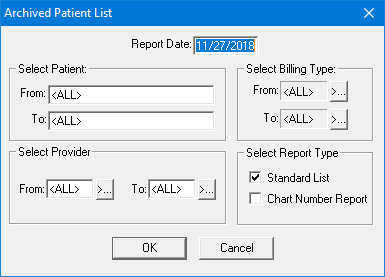
2. Type the Report Date that you want to print on the report. The default is the current date.
3. Do the following:
· Select Patient - Select the range of patients that you want to include. Click the From and the To search buttons to select the starting and ending patient, respectively, or leave <ALL> selected in both fields to include all patients.
· Select Provider - Select the range of providers that you want to include. Click the From and the To search buttons to select the starting and ending provider, respectively, or leave <ALL> selected in both fields to include all providers.
· Select Billing Type - Select the range of billing types that you want to include. Click the From and the To search buttons to select the starting and ending billing type, respectively, or leave <ALL> selected in both fields to include all billing types.
· Select Report Type - Select one or both of the following report types:
· Standard List - To print a list with the most patient information.
· Chart Number Report - To print a list that includes only the patients’ names, birth dates, Social Security numbers, and chart numbers.
4. Click OK to send the report to the Batch Processor.