
You can open list files in Microsoft Excel or Notepad.
To open a list file in Excel or Notepad
1. In the Office Manager, click Letters & Custom Lists.
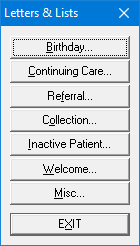
The Letters & Lists dialog box appears.
2. Click the button corresponding to the type of letter or list that you want to create:
Birthday - Birthday letters for patients within a range of birth dates.
Continuing Care - Continuing care (recall) notices to patients within a date range of Continuing Care appointments.
Referral - Referral letters to anyone who has referred or to whom you are referring patients.
Collection - Collection notices to patients within a date range of when payments have been made.
Inactive Patient - Notices to patients within a date range of Last Visit dates.
Welcome - Welcome letters to patients within a date range of First Visit dates.
Misc - Any letter that you want to selectively send to patients in your database.
A dialog box appears, listing the letter templates for the category you selected.
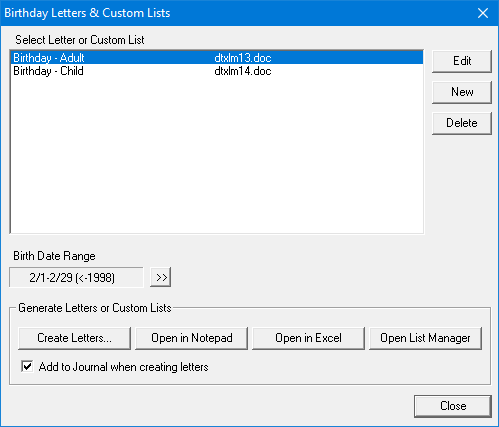
3. From the list select the template for the letter that you want to create.
Note: Depending on the type of letter you choose, you may need to set a date range. To set a date range, click the date range search button and specify the beginning and ending dates for the range. You can leave any date field blank to set an open-ended range.
If you are setting a birth date range and want to create letters for every patient born between the years January 1, 1980 and January 31, 2014, set those dates and then select Search as a Date Range. If, however, you want to create a birthday letter for a patient born in the month of January between January 1, 1980 and January 31, 2014, set those dates and DO NOT select Search as a Date Range.
4. Click one of the following buttons:
Open in Notepad – Opens the list file in Notepad.
Open in Excel – Opens the list file in Excel.