
In order to use Request to Pay, you must be registered for the Dentrix Pay service and have received Worldpay merchant credentials for payment processing. After setting up Request to Pay, you can send payment requests to your patients by text.
Notes:
You can only send Request to Pay text messages to one recipient at a time for situations when you have spoken with the patient, and the patient is expecting the payment request.
Due to Worldpay policies, the payment page is only active for 10 minutes after the text message is sent.
Important: Before sending billing-related texts, the Telephone Consumer Protection Act (TCPA) requires that the patient provides prior consent. Once consent is granted, it must be recorded in Dentrix. This consent is saved at the family level in the Family File and also applies to QuickBill text messages.
To send a payment request
1. With a patient selected in the Ledger, initiate a payment request by doing one of the following:
Click the Send Payment Request by Text toolbar button.
Click Transaction, and then click Send Payment Request by Text.
Click Transaction, click Enter Payment, in the Dentrix Help dialog box, select Use Request to Pay, type the payment amount, and then click OK.
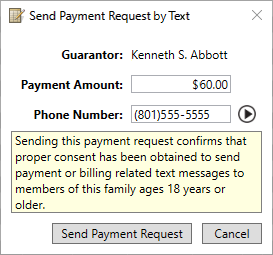
The Send Payment Request by Text dialog box appears.
2. As necessary, review and change the following:
Payment Amount – By default, the family portion of the balance (as calculated and displayed in the Ledger) is entered automatically. If applicable, you can enter a different payment amount.
Phone Number – The payment request is sent to the phone number appearing in the text box. If necessary, you can enter a different number or click the  icon to select a phone number of any family member as entered in the Family File.
3. After the payment amount and phone number have been reviewed and/or entered, click Send Payment Request.
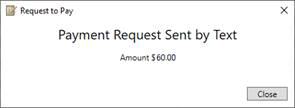
A Payment Request Sent by Text notification appears confirming that the payment request was sent successfully.
4. To view the payment requests you have sent, click the Office Journal toolbar icon.
The Office Journal appears listing the Request to Pay actions you have sent to the selected patient.