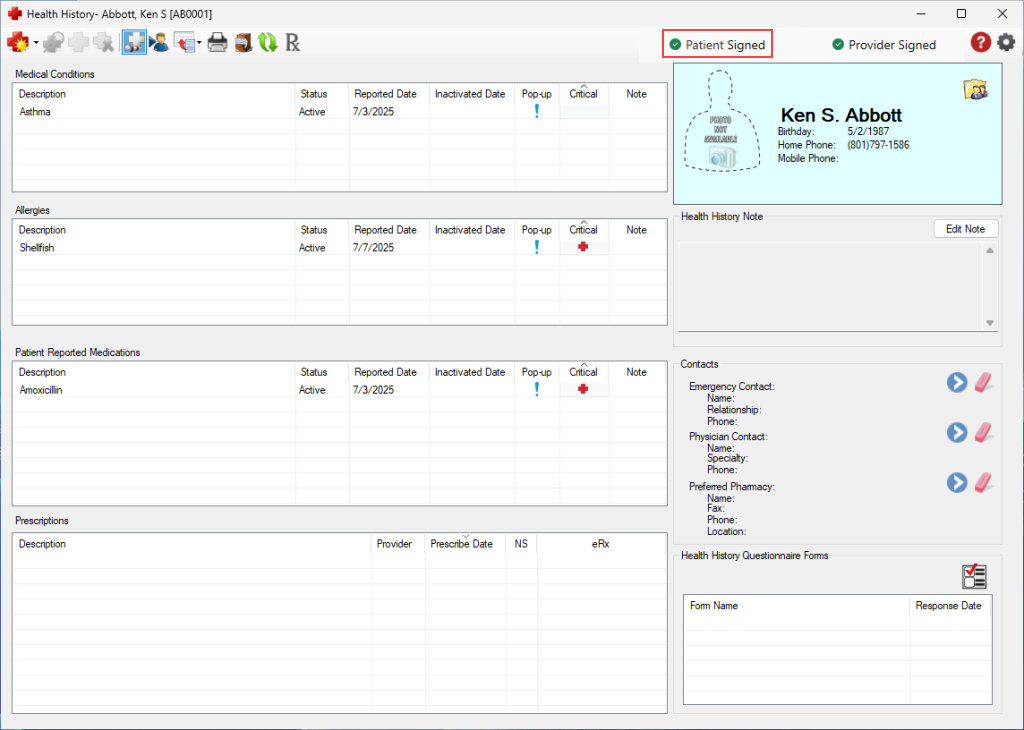
After patient forms have been completed online by the patient and updated in Dentrix, you are prompted to have the patient sign off on any changes that you made to his or her health history.
To obtain a patient's approval of a health history update
1. Open the Health History window.
Note: Whenever a medical condition, allergy, or patient-reported medication is added, edited, or inactivated in the Health History window after a form has been received for the patient’s appointment, a Patient’s Signature button appears in the upper-right corner of the Health History window.
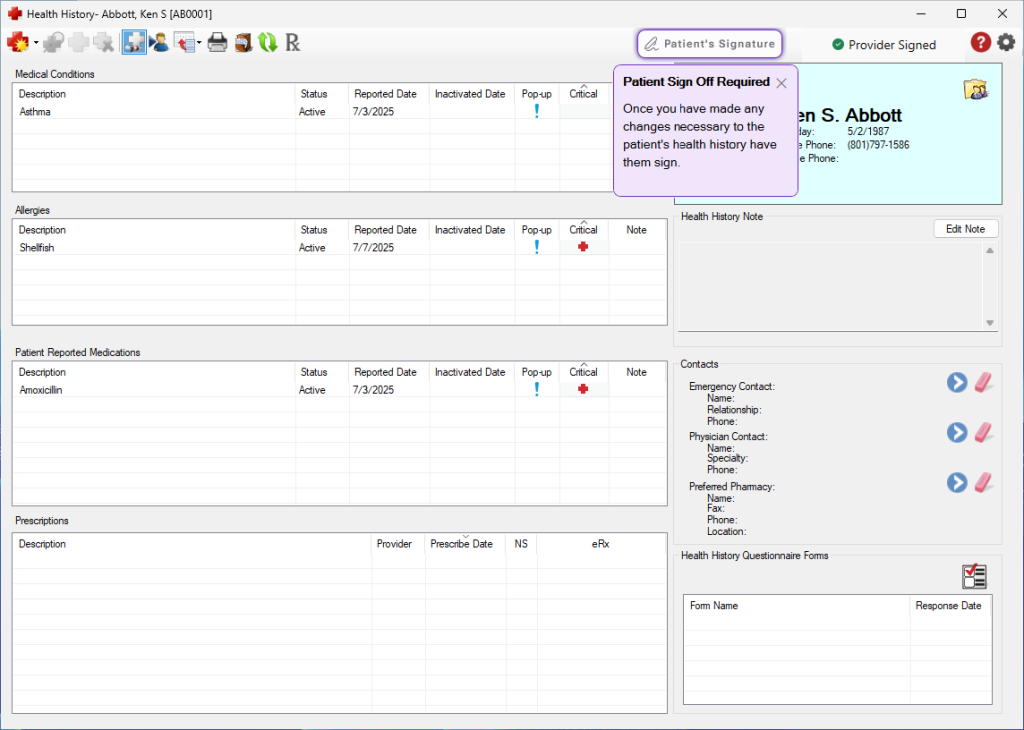
2. Click the Patient’s Signature button to have the patient approve the changes made to his or her health history.
The Capture Patient’s Signature dialog box appears.
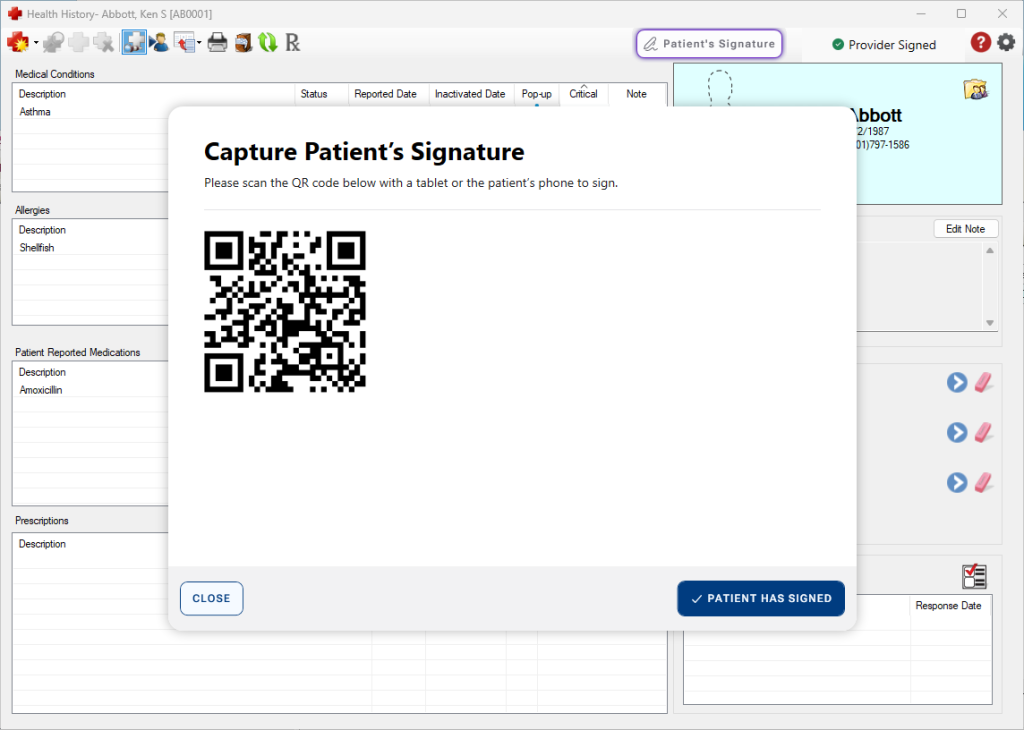
3. Have the patient to scan the QR code with his or her mobile phone or other device.
A form appears on the patient’s phone, allowing him or her to acknowledge and approve the changes.
4. Once the patient has reviewed and signed the form, click the Patient Has Signed button.
A Patient Signed indicator appears in the upper-right corner of the Health History window.