
If you have a signature device set up and attached, you can now use that signature device to capture a provider’s signature in Health History.
To capture a provider's signature
1. Open Health History and select a patient for whom a provider's signature is required.
The Health History window appears.
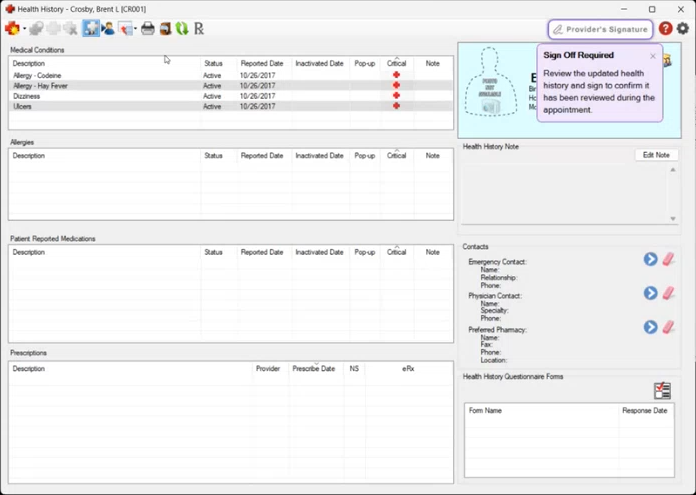
2. Click Provider's Signature.
The Capture Provider's Signature dialog box appears.
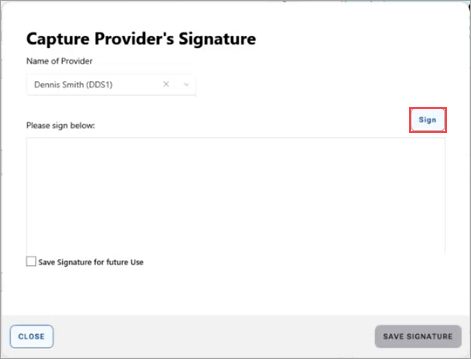
3. Click Sign.
The Dentrix Signature Capture dialog box appears.
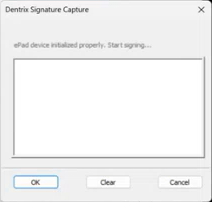
4. Enter your signature, and then click OK.
The provider's signature appears in the Capture Provider's Signature dialog box.
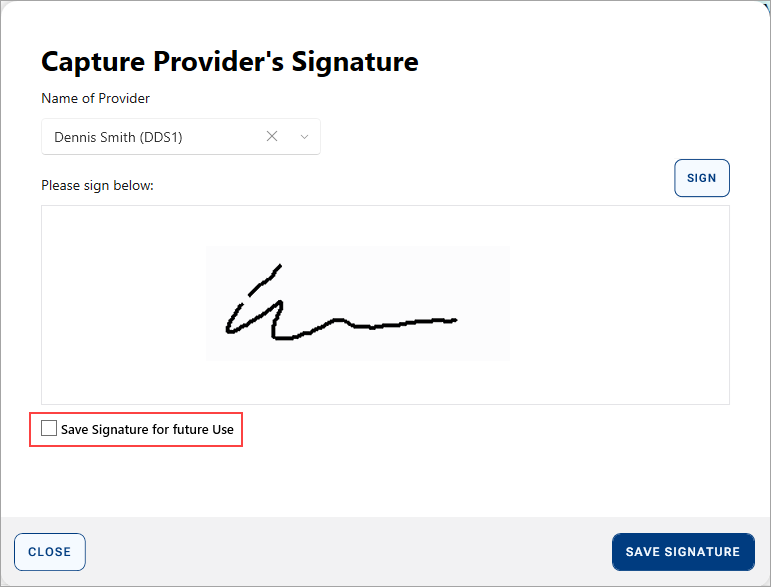
5. Select Save Signature for future use, and then click Save Signature.