
In Dentrix, you can set up insurance to cover a multiple coverage dental insurance plan. Before you can set up a subscriber's dependent for a multiple coverage plan, you must first set up a multiple coverage plan for a subscriber.
To set up a multiple coverage plan for a dependent
1. In the Family File, select a patient who is the subscriber of the insurance plan.
2. Double-click the Insurance Information block.
The Insurance Information dialog box appears.
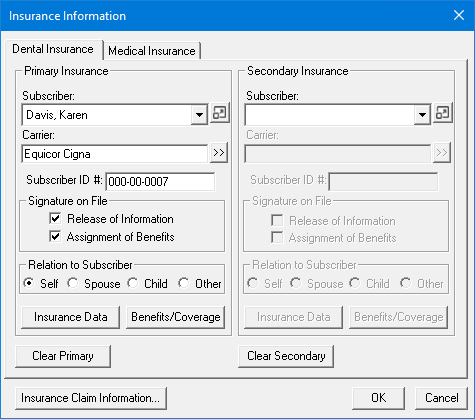
3. Under Secondary Insurance, click the Subscriber search button.
The Select Secondary Subscriber (Insured Party) dialog box appears.
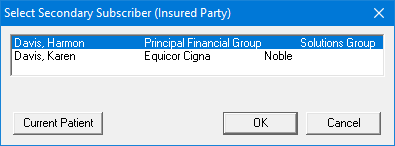
4. Click Current Patient.
5. Click the Carrier search button.
The Select Secondary Dental Insurance Plan dialog box appears.
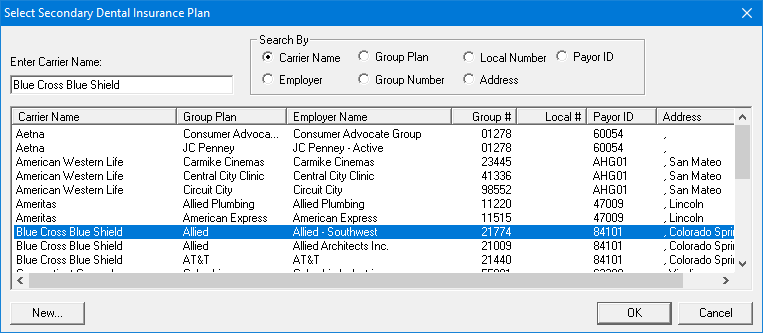
6. Select Carrier Name, and then type the first few letters of the carrier's name under Enter Carrier Name.
7. Do one of the following:
If the carrier and appropriate group plan are in the database, double-click the entry, and in the Insurance Information dialog box, click Insurance Data.
If the carrier and appropriate group plan do not appear, click New.
8. In the Secondary Dental Insurance Plan Information dialog box, as appropriate, edit or type the information for the carrier and group plan, and then in the Group Plan text box, type an identifying character, such as "B," to distinguish this group plan from the carrier's other group plans.
Note: Other identifying characters you could use include "S" for subscriber or "90" for the percentage of the plan's coverage. Consider using the character as a mnemonic device to help you easily distinguish one plan from another.
9. Do one of the following:
If you created a new carrier and group plan, click OK.
If you edited a group plan, click OK, select Add As New Plan, and then click OK.
10. In the Insurance Information dialog box, click Benefits/Coverage to set up the coverage table for the new or modified group plan.
11. Click OK.
The Insurance Information dialog box closes.
12. In the family member list in the Family File window, double-click the subscriber's dependent.
The dependent is made the active patient.
13. Double-click the Insurance Information block.
14. From the Insurance Information dialog box, click the Subscriber search button.
15. From the Select Secondary Subscriber (Insured Party) dialog box, select the subscriber with the appropriate group plan for the dependent, and then click OK.
The subscriber's group plan appears as the dependent's primary insurance.
16. Click OK.
The Insurance Information dialog box closes.
17. From the family member list in the Family File window, double-click the subscriber.
The subscriber is made the active patient.
18. Double-click the Insurance Information block.
19. From the Insurance Information dialog box, click Clear Secondary, and then click OK.
The secondary insurance is cleared from the subscriber, but because you attached the plan to the subscriber's dependent, the subscriber remains the current subscriber to this variation of the plan.
Note: The subscriber should now have a primary insurance plan only. If the subscriber has a secondary insurance plan and there are no other variations of the subscriber's primary plan, you can set up the subscriber's secondary insurance plan.