
Once you have installed your GXPicture device, it is ready to use and test in Dentrix Imaging.
To test GxPicture
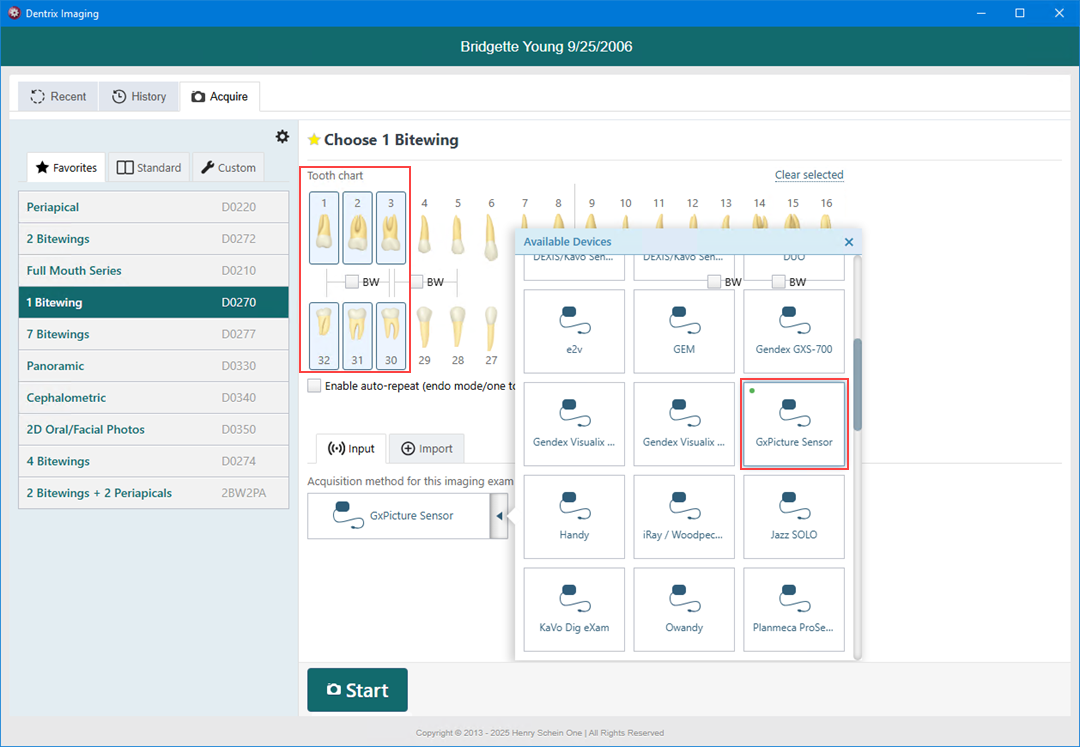
1. Open Dentrix Imaging, and then click the Acquire tab.
2. In the Favorites list, click 1 Bitewing.
3. In the Tooth chart, click the teeth you want to image.
4. In the Acquisition method for this imaging exam menu, click GxPicture Sensor, and then click Start.
5. Acquire an image using the GxPicture device.
Note: If an error appears, restart the computer to correct the issue.
6. Click Finish Acquisition.