
Dentrix Imaging supports acquiring CBCT images from the Acteon software on computers running the Windows operating system. You must install the Acteon software on each computer that uses the software bridge.
Notes:
Configure all acquisition devices with the Acteon AIS software on each computer that you will use to acquire images using the Acteon AIS software bridge.
Before installing any imaging devices, you must configure the acquisition agent application on each computer that you will use to acquire images using the software bridge.
This guide was last updated: 6/12/2025.
To configure the AIS software
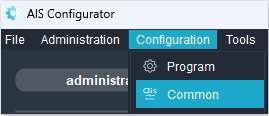
1. In AIS, open the AIS Configurator application.

2. Log in using the administrator account.
3. In the Configuration menu, click Common.
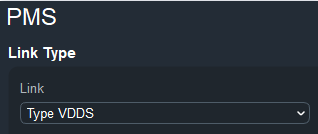
4. Click PMS.

5. From the Link list, click Type VDDS.
6. Click OK.
7. In a text editor, such as Notepad, open the VDDS_MMI.INI file (C:\Windows\VDDS_MMI.INI).
8. Add the following lines:
[PVS]
Name1=RCI
[RCI]
NAME=TEST_DICOM
VERSION=1.4
9. Save the changes, and then close the text editor.
The Acteon AIS software bridge is now functional.
To acquire a test 3D volume
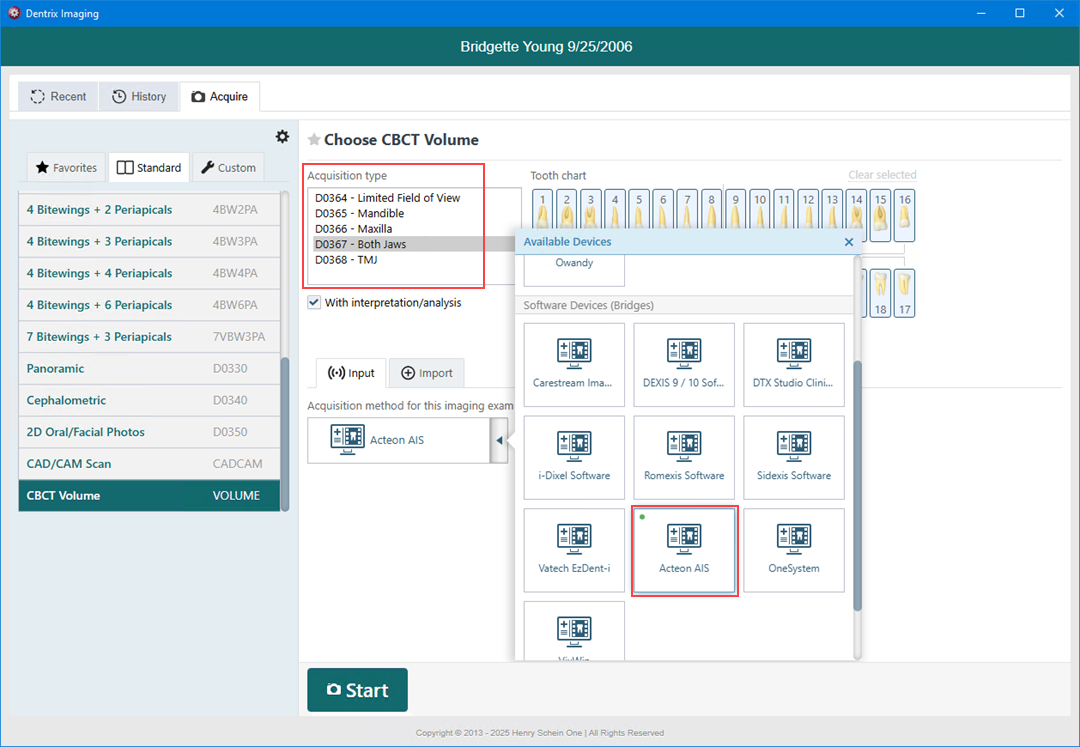
1. Open Dentrix Imaging, and then click the Acquire tab.
2. In the Standard list, click CBCT Volume.
3. Select an Acquisition type.
4. In the Acquisition method for this imaging exam list, click Acteon AIS, and then click Start.
5. Acquire a CBCT volume.
The captured CBCT volume appears in Dentrix Imaging automatically.