
Dentrix Imaging supports the acquisition of CBCT volumes from Owandy 3D devices on computers running the Windows operationg system. The Owandy 3D device drivers must be installed on each computer that the Owandy 3D devices are connected to.
Notes:
Before you install the Owandy device, you must configure the acquisition agent application on each computer that acquires images.
This guide was last updated: 10/16/2025.
Acquisition agent 1.2.8784.29845
Note: If the drivers for the device are not installed, and you are unsure what drivers are needed or do not have the installer for the device, it is recommended that you have an Owandy support technician install the device. You can find Owandy support and drivers at the following website: https://www.owandy.com/technical-support-drivers-download-owandy/.
To install the Owandy CBCT device drivers
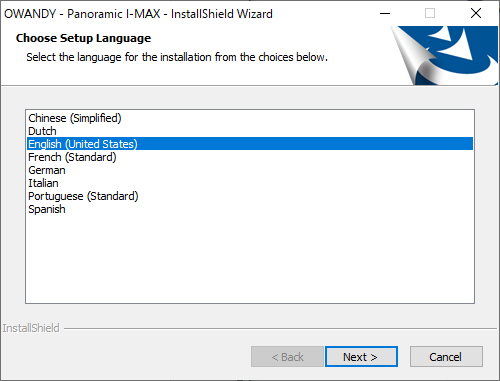
1. Run the installer for the device.
2. Select your device.
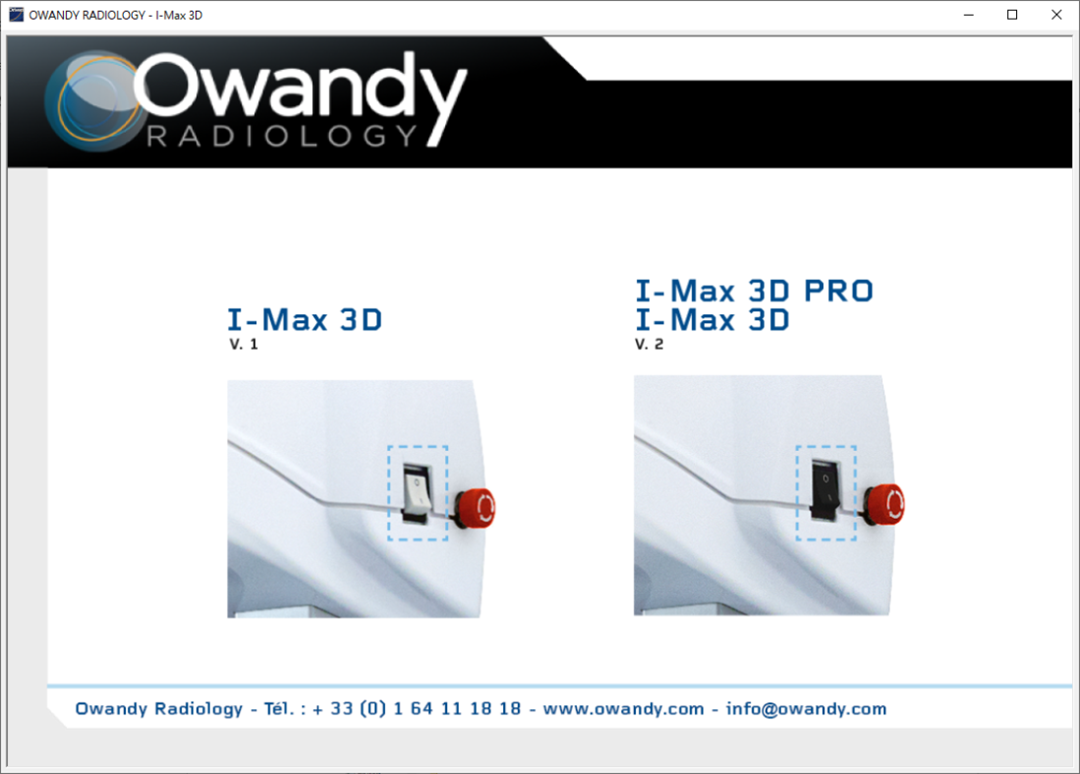
3. Install the drivers.
Once the Owandy CBCT device is functional, you can test it by acquiring an image.
To acquire a test image
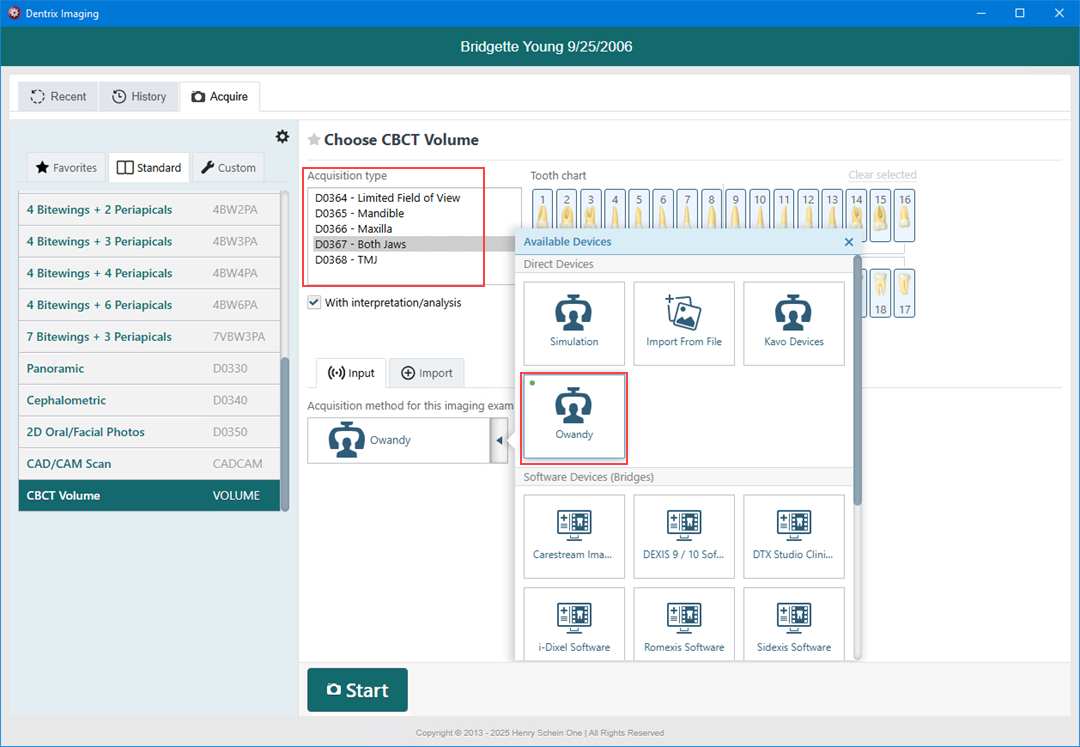
1. Open Dentrix Imaging, and then click the Acquire tab.
2. In the Standard list, click CBCT Volume.
3. Select an Acquisition type.
4. From the Acquisition Method for this imaging exam menu, click Owandy, and then click Start.
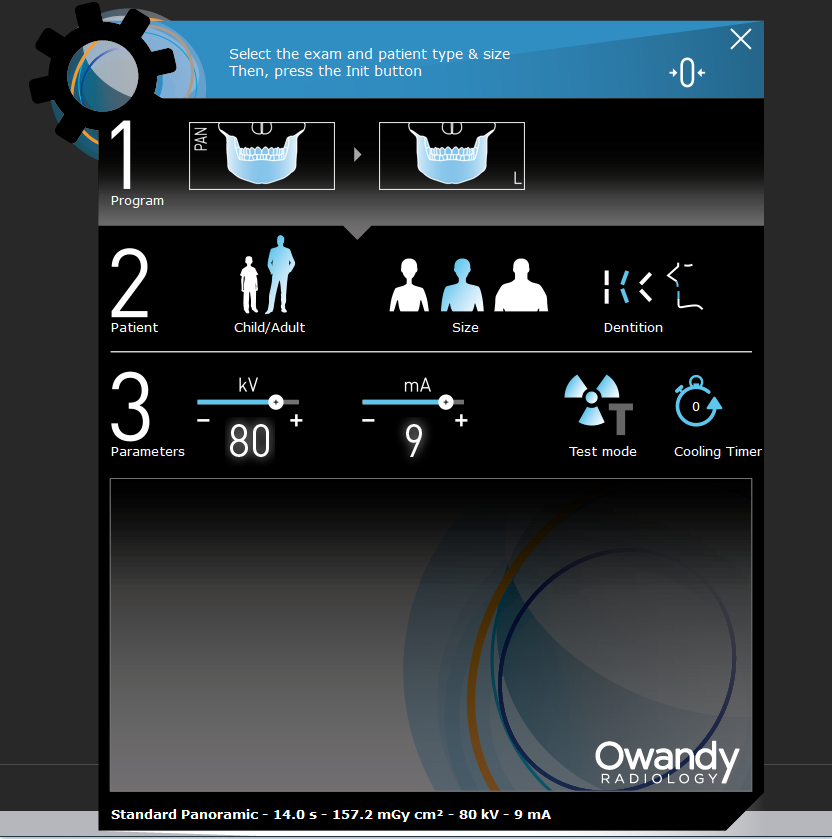
5. Acquire a CBCT volume.
The captured CBCT volume appears in Dentrix Imaging automatically.
If you are having trouble connecting to or setting up the 3D device, contact Owandy Support for assistance at https://www.owandy.com/technical-support-drivers-download-owandy/.