Dentrix Imaging supports acquiring intraoral images from the DEXIS Platinum intraoral X-ray sensor.
Notes:
· You must install the drivers for the DEXIS Platinum sensor on each Windows client workstation that the DEXIS sensor will be connected to or plugged into.
· You must download drivers for the Platinum sensor from https://dexis.com/en-eu/download-center.
· Before installing any imaging device, you must configure the acquisition agent application on each Windows client workstation that you will use to acquire images.
Minimum Acquisition Agent required: v1.2.8364.x
To set up the DEXIS Platinum sensor via legacy drivers
1. Install the DEXIS Platinum Legacy drivers on each Windows computer that you will use to acquire images from a DEXIS Platinum sensor.
You can find the installer from the DEXIS Software Manager.
2. Select KaVo Legacy Sensor Drivers, and then click Install.
The KaVo Legacy IO Sensor Drivers - InstallShield Wizard dialog box appears.
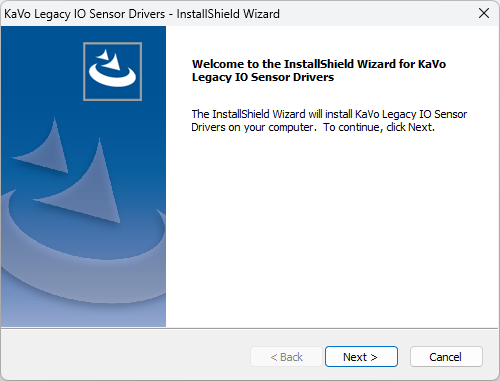
3. Click Next.
The Ready to Install the Program screen appears.
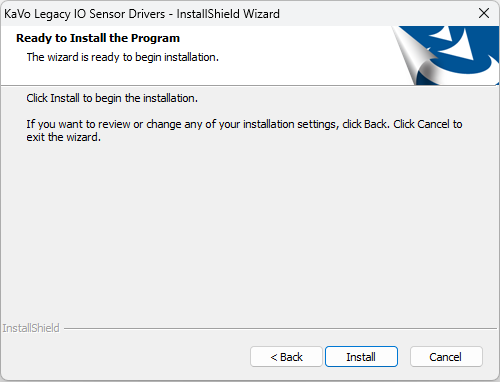
4. Click Install.
The InstallShield Wizard Complete screen appears.
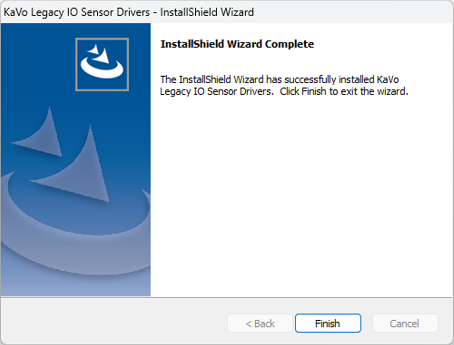
5. Click Finish.
6. Install the DEXIS Platinum sensor calibration file for each Platinum sensor onto every computer that you will use to acquire images from that specific serial number Platinum.
Notes:
· The sensor will not operate without the correct (matching serial number) calibration file.
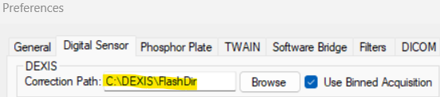
· The Calibration File is contained on a CD which is shipped with each DEXIS Platinum sensor and is labeled with the serial number. The DEXIS Platinum sensor has the serial number located on a tag located on the cable by the USB connector. The calibration file (also called a correction file) is serial number specific and must be the calibration file for this specific serial number Platinum sensor. Once calibration files are uploaded the Acquisition Agent should be configured to the location where the calibration files are located:
Once you have set up your Platinum sensor, your sensor is ready to use with Dentrix Imaging.
To test the DEXIS sensor
1. Open the Patient Chart and select a patient.
2. Open Dentrix Imaging.
The Dentrix Imaging dialog box appears.
3. Click the Acquire Images tab, and then from the Imaging Procedures list, click Bitewing Single Image.

4. In the tooth selection chart, click the teeth you want to image.

5. In the Acquisition method for this imaging exam list, click DEXIS/KaVo Sensors (DTX Studio Bridge), and then click Proceed with Acquisition.
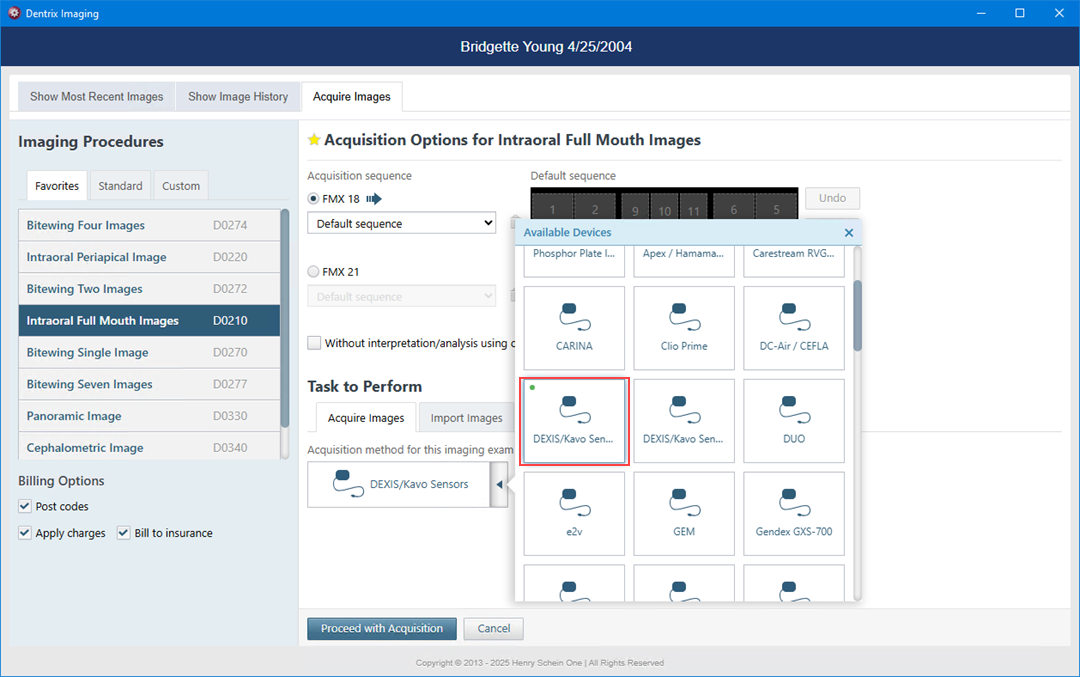
Note: If an error occurs, restart the computer to correct the error.
6. Click Finish Acquisition.
Platinum Sensor:
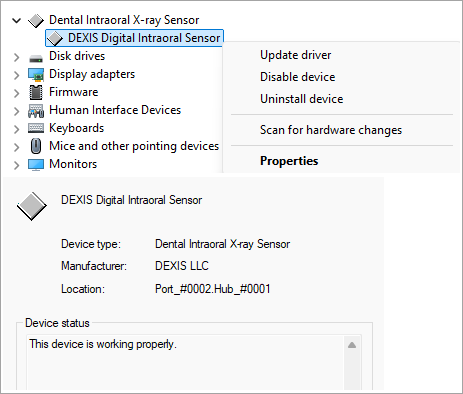
1. To confirm the device driver is loaded and the device is recognized by windows, plug in the Platinum sensor and then open Device Manager.
2. Confirm that the “Dental Intraoral X-ray Sensor” category exists, click it and “DEXIS Digital Intraoral Sensor” will be listed.
3. Right-click “DEXIS Digital Intraoral Sensor,” select Properties and confirm that “This Device is Working Properly.”
If it reports not working properly and/or not listed, then the physical drivers are most likely not properly installed (re-install by removing from control panel and re-install). If reinstalling the drivers doesn’t fix the issue, then the sensor has a bad connection and/or is physically defective and not recognized by the computer.