
Periodontal disease can be a difficult diagnosis for some patients to accept. In the early stages of the disease, your patient may not experience much pain or any noticeable symptoms. For practitioners, determining the amount of bone loss is an important step in diagnosing Periodontal disease, but severity can be tricky to define since the interpretation of the severity depends on a provider's reading of a patient's X-rays.
Dentrix Detect AI measures and analyzes the bone level from the cementoenamel junction to the alveolar bone in patients' bitewings and Periapical Radiographs (PAs). Measurements are in millimeters and the percentage of bone loss is annotated on the X-ray in green, yellow, orange, or red. These annotations make it easier for providers to visually communicate the key indicators of periodontal disease and to discuss potential treatment.
Important: This technology has received FDA clearance for use with patients aged 12 and older.
To measure interproximal Radiographic Bone Level in Dentrix Detect AI
1. Acquire a bitewing or Periapical Radiograph using your preferred imaging software.
2. In the Smart Image panel, click the image that you want to analyze.
Note: If the image has already been analyzed for caries, an icon appears above the image with the number of caries Dentrix Detect AI found.
The Diagnostic Viewer appears, the image processes, any caries Dentrix Detect AI found are outlined in red, and RBL measurements appear in green, yellow, orange, or red.
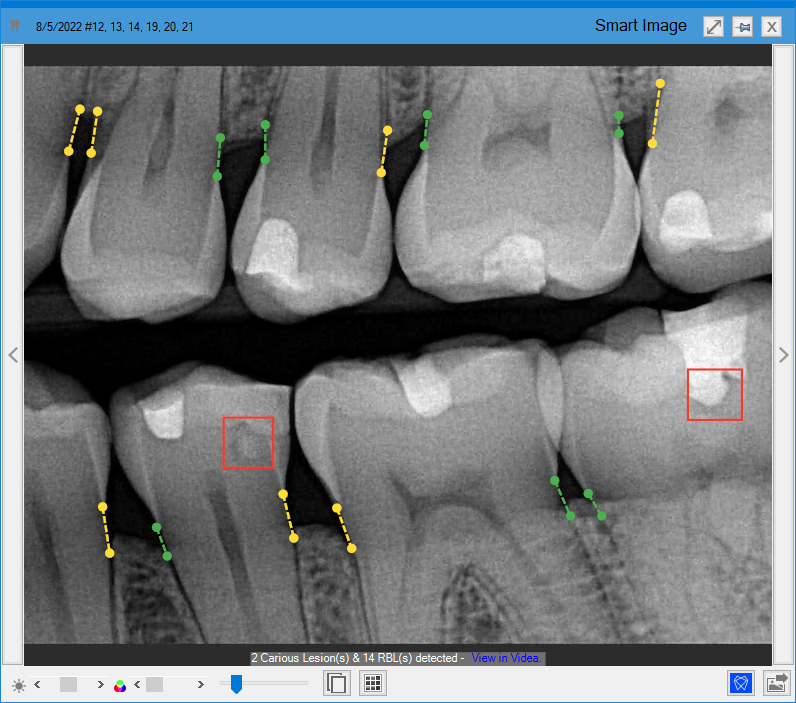
3. To view the RBL measurements in millimeters, hover your mouse pointer over the desired RBL measurement indicator.
4. To view the details of the analysis or to hide the results, click the VideaHealth AI button.
The following details box appears.
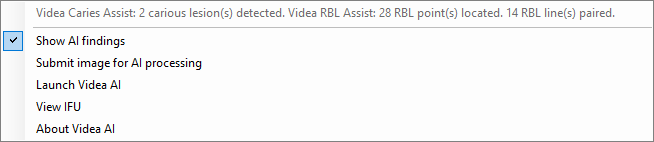
5. To hide the results, click Show AI findings.